
AV Access 3 Monitors 2 Computers KVM Dock
4.9Editor score
Desktop 8K@60Hz support
Triple-display switching
Shared 1Gb Ethernet
Laptop with KVM support comes in many forms; this expert guide compares ten options across displays, ports, charging, switching, and compatibility for buyers.
A laptop with KVM support lets one display, keyboard, and mouse work with multiple computers, reducing cable changes and making mixed-device workspaces more practical. However, the best choice depends heavily on monitor count, connector types, laptop capabilities, charging needs, and whether you need a basic switch or a full docking station.
This guide compares ten KVM switches and docking solutions for laptop-and-desktop or dual-laptop setups. We evaluated the supplied specifications for computer count, display support, video resolution, refresh rate, USB bandwidth, Power Delivery, switching methods, peripheral sharing, and important operating-system limitations.
The list spans a simple two-computer HDMI switch, DisplayPort and USB-C models, hybrid multi-computer docks, and feature-rich triple-monitor KVM docking stations. Each review explains the strongest use case and notable trade-offs, while current prices and availability can change at any time.
4.9Editor score

4.3Editor score

4.0Editor score
The table below compares all ten products by their core architecture, display capacity, peripheral connectivity, and ideal role in a laptop-centered workspace.


The Hearvo S7232H is a straightforward HDMI KVM switch for sharing one monitor, keyboard, and mouse between two computers. It carries a 4.0 rating and is designed for simple office, home, and laptop-and-desktop arrangements. Its strongest qualities are plug-and-play operation, broad device compatibility, and support for 4K@60Hz output.
We may earn a commission when you buy through this link, at no additional cost to you.
The switch combines two HDMI computer inputs with one monitor connection and four shared USB 3.0 ports. Data transfer is rated at up to 5Gbps, while Adaptive EDID is intended to maintain stable display settings. A panel button and included wired remote provide two convenient ways to change the active computer, which is useful when the switch itself is mounted out of sight.
The trade-offs are important: this is not a docking station, does not charge a laptop, and cannot drive multiple monitors. It also does not include a USB-C video input, so newer USB-C-only laptops may require an appropriate adapter and a separate power connection. Its simple design makes those limitations reasonable for users whose priority is dependable two-computer switching rather than a full workstation.
Choose this model when you have two systems, one display, and a preference for uncomplicated HDMI switching. It is especially appropriate for a spare office computer and a laptop that you connect through compatible video adapters. For anyone needing extended displays, Ethernet sharing, or 100W-class charging, one of the docking-oriented alternatives is the better fit.
The remote and front-button switching methods let you move between a laptop and desktop without replugging video or USB cables. Adaptive EDID also helps reduce the window resizing and display disruption commonly associated with changing computer sources.
Three USB-A ports and one USB-C port allow a keyboard, mouse, printer, headset, webcam, or storage device to be connected through the switch. The 5Gbps specification is suitable for many everyday accessories, although it is not the fastest option in this roundup.
We may earn a commission when you buy through this link, at no additional cost to you.
This hybrid KVM is built for complex workspaces containing one USB-C laptop and three desktop computers. It provides two shared monitors and allows all four systems to be selected with a button or wired remote. Its 4.2 rating reflects a capable design, though installation requires more attention than a basic two-computer switch.
We may earn a commission when you buy through this link, at no additional cost to you.
Each computer has a defined combination of inputs: the laptop uses USB-C with Power Delivery, while the three desktops use two display connections apiece, including DisplayPort and HDMI arrangements. The switch can deliver dual 4K@60Hz output and supports 2560×1440 at high refresh rates, 1920×1080 at up to 144Hz, and several other display modes.
Its EDID ON/OFF dial is a notable feature for troubleshooting display changes, and the 100W PD input can charge a compatible laptop. Actual charging is stated at roughly 73W to 85W because power is also consumed by the device and cables. The four USB 3.0 ports support up to 5Gbps, while the 12V external adapter helps ensure stable peripheral recognition.
This is the right choice for a desk used by several people or for a testing environment that combines one modern laptop with multiple desktops. It is less attractive for a simple home setup because the connection count, required cables, and setup complexity are much greater. Confirm each computer's outputs and refresh-rate needs before buying.
The four input profiles are the defining advantage. They allow a USB-C laptop and differently equipped desktops to coexist without forcing every computer to use the same connector configuration, making the switch practical for shared technical workspaces.
The dedicated EDID switch gives users control over whether the original desktop window is preserved during source changes. That can be valuable when applications behave differently in extended and mirrored modes or when a display is sensitive to resolution changes.
We may earn a commission when you buy through this link, at no additional cost to you.
The USB-C MST 3-Monitor KVM combines a docking station with a two-laptop, three-display KVM switch. It supports a work laptop and a personal laptop on the same desk while sharing two HDMI outputs, one DisplayPort output, and four USB 3.1 Gen2 ports. Its 4.3 rating and strong feature balance make it one of the most versatile options here.
We may earn a commission when you buy through this link, at no additional cost to you.
The stated output configuration is dual 4K@60Hz plus 1080p@60Hz, suitable for a detailed central display, a second high-resolution display, and a smaller productivity screen. Four 10Gbps USB ports provide more than enough bandwidth for typical keyboards, mice, webcams, printers, and external storage. A 100W Power Delivery port simplifies laptop charging, while the included 12V adapter supports stable operation.
Compatibility is the central trade-off. The laptop's USB-C port must support DP Alt Mode, data, power delivery, and multiple-screen output, and an 11th-generation-or-newer CPU generation is recommended. Mac systems do not support MST extension here, so users should plan on mirrored output or only one differently extended screen depending on the Mac configuration.
This switch is a strong recommendation for someone who regularly moves between two modern USB-C laptops and needs more than two displays. It is less suitable for older laptops, basic USB-C ports, or a user who needs a laptop to remain networked while unselected. Those needs are addressed by some of the AV Access docks in the guide.
The MST design turns a compatible USB-C laptop into a three-display workstation without maintaining separate cables for every screen. A panel button or included wired remote switches both laptops and all shared peripherals together.
Four 10Gbps USB 3.1 Gen2 ports distinguish this model from many basic switches. They are particularly useful for external storage and other accessories that benefit from faster transfer rates, while common input devices remain straightforward to connect.
We may earn a commission when you buy through this link, at no additional cost to you.
The AV Access 8K KVM docking station brings a USB-C laptop and a desktop into one shared triple-monitor workspace. It combines display switching, high-speed USB, Ethernet, audio, card access, and laptop charging in a single unit. The 4.2 rating reflects broad capabilities, with desktop-focused video performance as its standout feature.
We may earn a commission when you buy through this link, at no additional cost to you.
The desktop can output 8K@60Hz, 4K@165Hz, or 1080p at 480Hz and 360Hz. The USB-C laptop is listed at up to 4K@60Hz, 1440p@165Hz, or 1080p@240Hz. Support for VRR, FreeSync, G-Sync, and HDR broadens its appeal for gaming, design, trading, programming, and content creation, provided the source and displays support those features.
A full-featured USB-C cable carries video, data, and up to 100W of charging to the laptop. The shared 1Gb Ethernet connection remains active on both systems, allowing downloads, synchronization, updates, and remote access to continue on the unselected computer. Three 10Gbps USB ports, three 5Gbps USB-A ports, an SDXC reader, and a headset jack create a complete workstation hub.
The important limitation is macOS behavior. MacBooks can mirror displays but cannot create independent extended content across multiple external monitors through this KVM, and the USB-C port must support video. Windows users with MST-compatible USB-C are better positioned. Choose it when a powerful desktop and laptop need to share displays while remaining fully connected.
Separate output ceilings for the desktop and laptop help buyers understand what each system can realistically drive. The desktop is suited to very high resolution or extreme refresh rates, while the laptop receives a strong but more conservative set of display modes.
Keeping the shared Ethernet link active on both systems is unusually useful in a KVM dock. It supports uninterrupted background tasks without forcing you to reconnect a network cable whenever control changes.
We may earn a commission when you buy through this link, at no additional cost to you.
This AV Access dock is designed specifically for two USB-C laptops and two HDMI monitors. It offers a 12-in-1 connection set, including USB-A, USB-C, Gigabit Ethernet, headset, SD card, and dual HDMI outputs. The 4.2 rating and two-laptop focus make it a compelling option for professionals who alternate between work and personal systems.
We may earn a commission when you buy through this link, at no additional cost to you.
Both laptop inputs use full-featured USB-C connections with stated video and data support of 5Gbps. The dock can charge two laptops simultaneously at up to 60W each, while a single Ethernet port allows both systems to remain connected to the network. EDID emulation and automatic PC wake-up support switching in roughly two to three seconds through the front button.
Several compatibility limitations deserve attention. The USB-C ports must support DP Alt Mode and DP MST for extended dual-display operation, and macOS models support mirrored displays only. The product is not compatible with 5K monitors, FreeSync, G-Sync, or Dell Display Manager, while a 49-inch ultrawide is limited to 3840×1080.
The supplied package includes a 20V 10A power adapter, two 1-meter USB-C cables, and a manual. It is a strong match for a consultant, developer, or hybrid worker who owns two laptops and values simultaneous charging. Buyers should choose a different model if they need 5K output, independent Mac extended displays, or the highest refresh-rate options in the guide.
Charging both connected laptops at up to 60W each makes the dock more than a display switch. It supports a clean shared-desk arrangement where each machine remains ready for use without occupying a separate charger and monitor bank.
The combination of two HDMI outputs, multiple USB ports, Ethernet, audio, and card access can replace several small adapters. The included high-capacity power adapter is designed to support this broader collection of connected equipment.
We may earn a commission when you buy through this link, at no additional cost to you.
The AV Access B23-style triple-monitor KVM docking station is the most feature-complete premium option in the list. It shares up to three displays, networking, audio, card access, and USB peripherals between a USB-C laptop and desktop. Its 4.9 rating is the highest among the ten products and is supported by an unusually broad specification set.
We may earn a commission when you buy through this link, at no additional cost to you.
The desktop can drive 8K@60Hz or 4K@165Hz, while the laptop can use 4K@60Hz, 1440p@165Hz, or 1080p@240Hz. Compatibility with VRR, FreeSync, G-Sync, and HDR makes it appropriate for high-end gaming and professional visual work. A full-featured USB-C connection provides display output, data, and up to 100W of laptop charging.
The shared 1Gb Ethernet connection remains active for both computers, allowing background work to continue after switching. Two USB-A 3.2 ports and one USB-C 3.2 port deliver up to 10Gbps, while three additional 5Gbps USB-A ports cover keyboards, mice, printers, and other everyday accessories. An SDXC reader and 3.5mm headset port round out the workstation features.
The main trade-off is platform limitation and setup complexity. Compatible Windows laptops can use MST for extended multi-monitor mode, but MacBooks are limited to mirrored output. HDMI and DisplayPort cables are also not included with this version. It is best for buyers who need a serious shared workstation and are willing to match every source, monitor, and cable to the supported modes.
The 8K@60Hz and 4K@165Hz desktop options provide room for demanding color-critical work, high-speed gaming, and large productivity displays. Actual performance still depends on the graphics output of the selected computer and the capabilities of every cable and monitor.
An active shared Ethernet connection is valuable for parallel workflows involving cloud storage, updates, downloads, and remote access. Neither computer needs to be taken fully offline simply because the user changes the active display source.
We may earn a commission when you buy through this link, at no additional cost to you.
The AV Access dual-laptop docking station gives two USB-C computers access to the same two HDMI monitors and a collection of shared peripherals. It supports up to 4K@60Hz, 2560×1440 at 144Hz, and 1080p at 240Hz or 165Hz. Its 4.1 rating reflects a useful design, especially for users prioritizing charging capacity.
We may earn a commission when you buy through this link, at no additional cost to you.
Each input has an adjacent USB-C charging connection, with stated support for up to 100W of laptop charging when the original power adapter is used. The 11-in-1 layout includes three USB 3.0 ports, two USB 2.0 ports, a USB-C port, Gigabit Ethernet, a headset connection, an SD card slot, and two HDMI outputs.
EDID emulation and automatic PC wake-up are intended to produce switches in two to three seconds. Users can select the active computer with the front panel button or included remote. However, macOS does not support USB-C MST, so duplicate content may be shown across the two monitors, and some laptops with integrated graphics may not support dual 4K output.
This is a useful middle ground between basic dual-monitor docks and the more advanced AV Access models. It makes the most sense for two compatible Windows laptops that need high-resolution displays, substantial charging, and wired networking. Verify the USB-C video capabilities of both laptops before installation, especially if either uses integrated rather than discrete graphics.
The separate charging connections allow each selected laptop to receive substantial power while its display and data connections remain active. This is particularly useful for users who routinely work long sessions away from their normal charger.
EDID emulation, automatic wake-up, and two switching controls reduce the effort involved in moving between work and personal systems. The feature set makes the dock practical for shared desks where quick transitions are more important than manual replugging.
We may earn a commission when you buy through this link, at no additional cost to you.
The DisplayPort 8K KVM Switch is a focused solution for sharing one high-resolution display and common peripherals between two computers. It carries a 4.2 rating and supports resolutions up to 8K@60Hz, making it a practical choice for desktop-class graphics and a laptop equipped with suitable DisplayPort or USB-C video output.
We may earn a commission when you buy through this link, at no additional cost to you.
Four USB 3.0 ports provide up to 5Gbps transfer and are backward compatible with USB 2.0, 1.1, and 1.0. Users can connect a keyboard, mouse, printer, webcam, or flash drive, while LED indicators identify the selected input. A front button and included wireless controller provide two switching methods, and the controller does not require direct line of sight.
The included 12V power adapter is important because the power available from a computer host is considered insufficient for high-demand USB devices such as hard drives. For 8K output, a standard SuperSpeed DisplayPort 1.4 cable is recommended, but it is not included. Keyboard-shortcut hotkeys are also unsupported, so users must rely on physical controls.
This model suits a minimalist one-monitor setup with a strong preference for DisplayPort and high resolution. It is less appropriate for laptop users who need charging, multiple screens, or active Ethernet sharing. A USB-C dock-style KVM is generally more natural when the goal is to connect a laptop with one cable and expand several ports at once.
The external power supply allows the switch to support USB devices that may not receive adequate power from a computer host. That makes it more suitable for shared external storage than a passively powered alternative.
The advertised 8K mode depends on using a suitable SuperSpeed DisplayPort 1.4 cable and compatible source hardware and display. Buying the correct cable alongside the switch avoids unnecessary troubleshooting over blank or unstable output.
We may earn a commission when you buy through this link, at no additional cost to you.
The Alxum USB-C Switch is a compact two-computer option designed for a shared USB-C monitor or docking station. It has a 3.9 rating, the lowest in the group, and its appeal lies in high data bandwidth, portable construction, and straightforward source switching rather than built-in multi-monitor KVM features.
We may earn a commission when you buy through this link, at no additional cost to you.
The switch supports up to 20Gbps data transfer, 8K@30Hz or 4K@144Hz video, and 140W of pass-through charging. It can be connected directly to a docking station with a male Type-C connector or through the included USB-C female-to-female adapter when the dock uses a shorter pigtail. The power supply is not included, which is an important point for laptops that need charging.
Compatibility is the main consideration. All connected USB-C devices need DP Alt Mode, Dell docking stations are expressly unsupported, and Thunderbolt 3 devices, docks, or displays are limited to one 4K@60Hz output. A Thunderbolt 4 dock with two displays is also limited to 4K@60Hz. macOS can extend to one 4K@60Hz display.
Choose this model for a portable setup centered on a compatible USB-C monitor or dock. It can be especially useful for a user who wants to alternate between two laptops without moving a single docking setup. Buyers using Dell hardware or requiring complex multi-screen extension should instead favor a more broadly compatible dedicated KVM dock.
The device preserves a familiar USB-C ecosystem: connect the shared dock or display once, then use the panel button or wireless remote to select a laptop. The compact form also suits temporary workstations and travel-oriented setups.
Up to 20Gbps provides ample throughput for compatible high-speed storage and dock peripherals. Performance can vary according to the host device and the exact USB or Thunderbolt implementation used in the chain.
We may earn a commission when you buy through this link, at no additional cost to you.
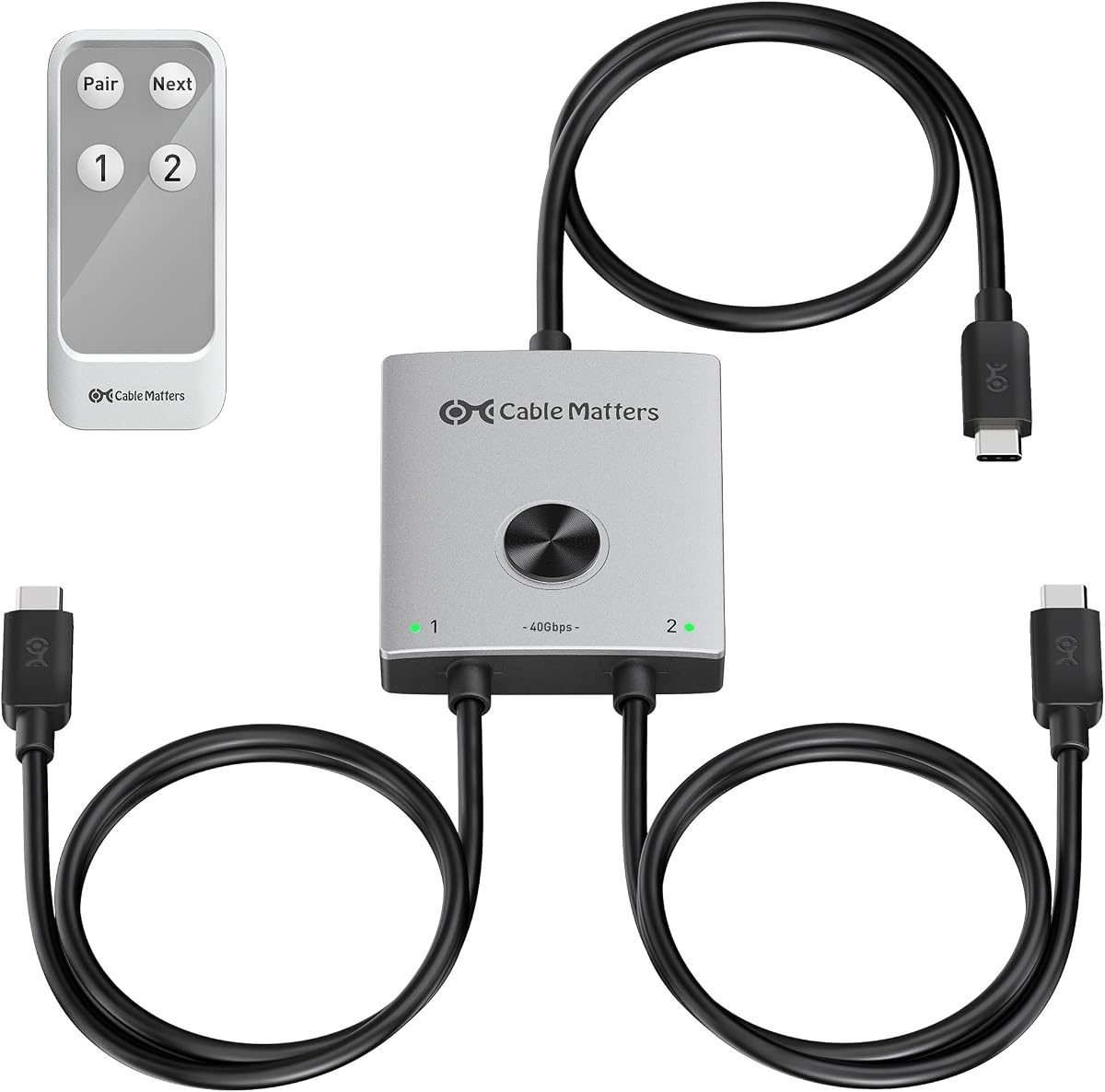
The Cable Matters 40Gbps USB-C KVM switch is designed for sharing a high-end USB4 or Thunderbolt dock between two modern laptops. It carries a 4.6 rating, the second highest in the roundup, and distinguishes itself through 40Gbps bandwidth, extensive display support, and up to 140W of charging pass-through.
We may earn a commission when you buy through this link, at no additional cost to you.
Compatible laptops can share one monitor or a full docking station with displays, keyboard, mouse, storage, Ethernet, and other accessories. Video modes include 8K@60Hz, 6K@60Hz, and 4K@240Hz where the complete setup supports them. The switch also lists compatibility with numerous USB-C, USB4, Thunderbolt 4 monitors, and major Thunderbolt docking stations.
The dock must have a detachable host cable. A dock with a fixed, non-detachable host cable is not supported, and the built-in cable path is already 1.8 meters, so an extension cable should not be added. An 80Gbps dock is limited to 40Gbps through the switch. Charging reaches the active laptop only, and actual delivery depends on the monitor or dock and laptop.
This is the best fit for a Thunderbolt-centric professional desk where one high-end dock serves a work laptop and a personal laptop. The built-in input and output cables create a tidy setup, while the RF remote allows convenient switching without direct line of sight. Verify dock construction, video capabilities, and power requirements before purchasing.
The switch is optimized for the scenario where a well-equipped dock is more valuable than either laptop's built-in ports. A single shared dock can present the same displays and accessories to whichever compatible laptop is selected.
Support for 8K@60Hz, 6K@60Hz, and 4K@240Hz gives compatible displays room for demanding work. DSC, where required, and the capabilities of the complete monitor, cable, and host chain determine the final resolution and refresh rate.
We may earn a commission when you buy through this link, at no additional cost to you.
The right KVM choice depends first on how many computers and displays you use, followed closely by connector compatibility, charging requirements, and operating-system behavior. Reviewing those factors before buying prevents many common setup problems.
Begin with the exact number of computers you want to control and the number of displays that must appear on the desk. A basic HDMI or DisplayPort switch handles two computers and one display, while a dual-monitor KVM can share two screens. Three-monitor docking models suit a laptop-and-desktop workstation or two capable laptops, and hybrid switches can support as many as four computers with two displays.
Choose a capacity that matches your present workflow without paying for unused inputs. More computers and outputs usually mean more required video cables, more setup steps, and a larger power footprint.
Check whether each computer uses HDMI, DisplayPort, or USB-C, and determine the resolution and refresh rate of each monitor. A 4K@60Hz requirement is common, but high-end gaming, trading, and creative displays may need 4K at very high refresh rates or even 8K output. The source GPU, laptop USB-C capabilities, cables, and displays must all support the selected mode.
Prefer native matching connectors when possible. USB-C is convenient for laptops, but it still requires compatible DP Alt Mode, MST, and power-delivery support when used for multiple screens.
USB-C does not guarantee external video, much less multiple external displays. A laptop's USB-C port must support DisplayPort Alt Mode, data transfer, and the required power delivery. MST is also required for one source to drive multiple independent screens through a daisy-chained or dock-based arrangement.
Windows laptops generally offer the broadest MST support, while macOS behavior is more restrictive. Confirm that your exact laptop model can extend two or three displays rather than assuming every USB-C port behaves identically.
If the KVM will charge a laptop, compare the advertised Power Delivery figure with the machine's charging requirements. A dock stating up to 100W may deliver less after accounting for conversion losses and cable consumption. Some models charge one connected laptop, while others provide separate charging inputs for two laptops.
Also determine whether the power adapter is included. A switch with pass-through charging may still require a suitable wall charger, and a model that relies on host power may not support power-hungry external storage.
USB speed determines how comfortably you can use external storage, docks, webcams, and other accessories. Options in this guide range from 5Gbps USB 3.0 to 10Gbps USB 3.1 Gen2, 20Gbps USB-C, and 40Gbps Thunderbolt-oriented bandwidth. A higher number can be useful, but the connected dock, host, and cable must support the same standard.
Count the ports you need by type as well as speed. Look for enough USB-A and USB-C connections, a wired Ethernet port, card reader, audio jack, and any legacy ports required by printers or specialized equipment.
A KVM switch that includes Ethernet can keep both computers online while control changes, allowing downloads, synchronization, and remote access to continue on the inactive system. Basic video switches generally do not include this function. A KVM docking station is usually the better option for a permanent dual-computer office.
Consider audio, printer, webcam, and storage needs as well. A keyboard and mouse are standard, but frequently used accessories should be connected to shared ports so they follow the selected computer automatically.
Front-panel buttons, wired remotes, wireless remotes, and hotkeys are the common switching controls. Physical buttons are dependable and easy to locate, while a remote helps when the switch is hidden. Check whether the product supports the switching method you prefer; some units explicitly exclude keyboard hotkeys.
EDID emulation or an EDID ON/OFF control can preserve display settings and reduce resolution changes. These features are useful for multi-monitor workstations, particularly when applications open in unexpected sizes after a source change.
Windows, macOS, Linux, and Chrome OS appear across many listings, but multi-display support varies considerably. macOS generally cannot use MST to create independent extended content across three external displays, and some Mac models mirror two screens. Integrated laptop graphics may also limit dual 4K output even when the dock itself supports it.
Review the product's detailed notes rather than relying only on its operating-system list. Also check whether 5K, ultrawide, adaptive-sync, or vendor-specific display-management features are supported before finalizing a choice.
Begin by identifying which port on each computer supplies video, data, and power. Connect those sources to the correctly labeled KVM or dock inputs, attach the display outputs, and then add shared keyboards, mice, and other peripherals. Read the included manual before connecting a dock with a non-detachable host cable, since those may require a different solution.
Power the device as directed and select the first computer using the front button, remote, or supported hotkey. Confirm that the display mode is correct before moving files or beginning important work. If a resolution or extended-display setting is wrong, check the source computer's display configuration and the switch's EDID setting before changing cables repeatedly.
Keep ventilation openings clear, avoid placing the unit on soft surfaces, and do not exceed the device's stated power or cable limitations. Use the specified external adapter when required, and use quality cables that meet the bandwidth and length limits stated in the manual. For long-term setups, label input ports and keep spare compatible cables available for maintenance.
KVM support lets a laptop share a monitor, keyboard, and mouse with other computers through a switch or docking station. You change the active source instead of reconnecting every cable. A dedicated laptop with built-in KVM features may also offer network or peripheral switching, so check the laptop's exact specifications.
Yes, provided the KVM model has enough computer inputs and the laptops use supported connections. The hybrid four-computer model combines one USB-C laptop with three desktops, while several AV Access docks are designed for two laptops. Compatibility with video output, MST, and charging must be checked separately for each machine.
No. A USB-C port must support DisplayPort Alt Mode, and multi-monitor use generally also requires MST support. Some laptops are limited by their graphics hardware, generation, operating system, or built-in display-output configuration. The product descriptions for the MST and AV Access models include specific compatibility cautions.
Only models with an explicitly stated Power Delivery function will charge through the switch or dock. The amount delivered depends on the advertised wattage, the power source, the cable, and losses within the device. Some dual-laptop docks also require the original laptop adapters to achieve their stated charging levels.
Mac systems are commonly limited to mirrored displays in these KVM docking products because macOS does not provide the same MST extension behavior as Windows. Depending on the model, a Mac may show duplicate content or support only one additional extended screen. Check the exact macOS note in the product listing before installation.
A basic KVM switch routes video and shared input devices between computers. A KVM docking station adds functions such as USB hub expansion, Ethernet, audio, card reading, and laptop charging, often with more display outputs. A docking model is usually the better choice for a permanent laptop desk, while a simple switch suits a minimal two-computer setup.
Start with source selection, cable quality, and the required external power. Some products specify short USB-C, HDMI, or DisplayPort cables, while 8K and high-refresh modes require suitable high-bandwidth cables. Also confirm that the computer supports the selected resolution, refresh rate, and extended-display configuration.
EDID emulation is helpful because it can preserve monitor identification and display settings when switching computers. It may reduce window resizing, incorrect scaling, or resolution changes, particularly on multi-screen desks. It is not the only consideration, however, and it cannot overcome a source computer that lacks required video capabilities.
The USB-C MST 3-Monitor KVM is the most balanced general recommendation because it combines two-laptop switching, three displays, 100W charging, and fast USB expansion. The AV Access 8K Triple KVM Dock is the premium option for demanding desktop-and-laptop workflows, while the Hearvo HDMI switch provides the simplest way to control two computers and one monitor.
Prioritize the connections your equipment actually requires. A single-monitor user may need little more than reliable source switching, but dual-laptop and desktop users should verify MST, refresh rates, Ethernet behavior, charging, and Mac restrictions before making a selection. The correct cable and compatible source computer are as important as the KVM itself.
Finally, remember that prices, promotions, and availability can change. Review the current listing, included components, warranty information, and compatibility notes before ordering, and make sure the product's current specifications still match the setup you have in mind.