
Lenovo Idea Tab Plus
4.6Editor score
Sharp 12.1-inch color display
Included Lenovo Tab Pen
Four learning and note apps
A tablet for journaling should make writing feel natural while helping you organize ideas, revisit meetings, and keep important documents close at hand. The right device balances a paper-like surface, responsive pen input, comfortable screen technology, long battery life, and dependable note organization rather than merely adding a touchscreen to a typical media tablet.
This guide compares ten options for handwritten journaling, academic note-taking, professional meetings, document markup, and more colorful creative work. It evaluates the supplied display, stylus, storage, writing, transcription, organization, portability, and learning features, then explains where each tablet fits best and where compromises may appear.
Each review identifies a distinct use case, from distraction-free digital paper to AI-assisted meeting notes and general-purpose Android writing. Ratings reflect the information provided for these products, while availability and pricing can change over time. Always confirm current specifications, accessories, and software conditions before making a purchase.
4.6Editor score

4.2Editor score

4.7Editor score
As an Amazon Associate we earn from qualifying purchases.
The comparison covers display size and technology, stylus support, organization tools, battery claims, and the features that distinguish dedicated digital notebooks from general-purpose tablets.




The reMarkable Paper Pro is the most complete dedicated journaling option in this group, earning a 4.2 rating from the supplied product information. Its 11.8-inch Canvas Color display combines a low-glare surface, natural-light readability, and an adjustable reading light. The included Marker Plus, six replacement tips, and black leather Book Folio make it a ready-to-use writing package rather than a bare tablet.
We may earn a commission when you buy through this link, at no additional cost to you.
The strongest feature is its approach to handwriting. The display and Marker Plus are designed to work together, with friction, responsiveness, and precise control intended to feel like writing on paper. That makes the device particularly attractive for long-form journals, lecture notes, sketches, and PDF markup. At the same time, folders, tags, direct PDF annotation, and one-step handwriting-to-text conversion give the tactile experience useful digital organization.
There are reasonable compromises. A color paper tablet cannot replicate the unlimited color palette of a conventional LCD, and the 4.2 rating suggests that the package may not satisfy every buyer. Some connected features, including searching handwritten notes, may depend on the manufacturer's subscription terms. Buyers who value minimal distraction and paper-like input over app flexibility will find those limitations easier to accept.
This is the strongest recommendation for someone who treats journaling as a daily habit and wants a large, calm writing surface. It also works well for students and professionals who annotate documents without being distracted by a conventional app-filled tablet. Choose it when natural handwriting, low glare, and focused organization matter more than maximum display vividness.
The Marker Plus is tuned for the Canvas Color display, with realistic friction and responsive control designed for long handwritten sessions. It is a meaningful advantage for users who find conventional glass screens tiring for journaling.
Folders, tags, PDF markup, and handwriting conversion keep archived thoughts accessible while preserving a clean, low-glare workspace. The result suits both private journals and professional document workflows.
We may earn a commission when you buy through this link, at no additional cost to you.
The Lenovo Idea Tab has a 4.3 rating and targets students who want a capable digital journal without giving up a full Android tablet experience. Its 11-inch 2.5K IPS touchscreen runs at 90Hz, while the MediaTek Dimensity 6300, 4GB of memory, and 128GB of storage provide a practical platform for note apps, reading, and study software.
We may earn a commission when you buy through this link, at no additional cost to you.
The included Tab Pen and folio create a useful all-in-one package. Lenovo AI Note, Squid, Nebo, and MyScript Calculator cover handwriting, visual organization, note conversion, and calculations. Circle to Search adds another route to research: users can circle content with the pen or finger and receive search results without manually switching applications. The 72% NTSC color specification and quad Dolby Atmos-tuned speakers also make it useful beyond a journal.
The trade-offs are modest but worth noticing. With 4GB of memory, the tablet is less generous than larger-memory configurations, and a standard Android environment will offer fewer distractions than a dedicated digital notebook. Its display is not the same low-glare E Ink type used by dedicated paper tablets, so users sensitive to reflections may prefer those alternatives.
The Lenovo Idea Tab is best for a student who wants handwriting, research, streaming, and familiar Android apps in one device. It is a particularly sensible recommendation for campus life, where a single tablet can support classes, note-taking, reading, and entertainment without demanding a separate paper-style device.
Four bundled applications support writing, organizing, sketching, and calculating. This makes the tablet immediately useful for lecture notes, problem sets, and research before additional software is configured.
The smooth 90Hz 2.5K screen adds fluid movement to a conventional LCD experience. Standard Android versatility makes this a strong choice for students who split time between journaling and everyday computing.
We may earn a commission when you buy through this link, at no additional cost to you.
The AINOTE Air 8.4 is built around professional meeting capture rather than general-purpose entertainment. It carries a 4.3 rating, weighs 320 grams, and uses an 8.4-inch next-generation soft-color display designed to provide a paper-like writing surface. Low-blue-light illumination and anti-glare treatment support comfortable extended use.
We may earn a commission when you buy through this link, at no additional cost to you.
Its defining strength is the integrated meeting assistant. Audio can be captured offline and stored locally before transcription, summarization, and cloud synchronization become available when connected. The assistant can extract action items, answer questions, search information, and build a personal knowledge base. Handwriting recognition covers 66 languages, while transcription and translation support 48 languages. These tools make the device compelling for interviews, classes, and multilingual business communication.
Some features depend on a connection even when the device appears designed for offline work. Users should distinguish between locally recorded audio and remotely processed transcription or summarization. The 8.4-inch canvas is also less expansive than the 11-inch, 12.1-inch, 12.7-inch, and 13.1-inch alternatives, which could matter when reviewing dense notes or lengthy documents.
This is a compelling match for professionals and students who attend many meetings and want a compact note system with AI assistance. It is less suited to buyers seeking a large color canvas or a broad entertainment library, but for recorded and summarized conversations, it offers one of the most focused feature sets in the roundup.
Offline audio capture creates a dependable record, while connected processing transforms conversations into summaries, searchable text, and action items. That combination reduces the manual cleanup often required after interviews and classes.
Handwriting recognition across 66 languages, secure 64GB local storage, and encrypted audio transmission support internationally oriented workflows. Cloud access can back up important documents without replacing local availability.
We may earn a commission when you buy through this link, at no additional cost to you.
The iFLYTEK AINOTE Air 2 has the highest supplied rating at 5.0 and combines an E Ink writing surface with extensive transcription capabilities. Its 8.2-inch HD display offers 23ms latency, multiple pen nibs, and 24 levels of adjustable front-light color temperature. The result is designed to look and feel paper-like while adding automatic organization.
We may earn a commission when you buy through this link, at no additional cost to you.
Language support is the standout feature. The device provides voice-to-text transcription in 18 languages, mutual translation across 14 languages, and handwriting recognition for 113 languages. Symbol-triggered tasks can create to-do lists and extract schedule information, while AI features generate summaries and weekly work reports. The product information also emphasizes permanent AI productivity tools without monthly subscription requirements.
Storage and battery support the professional positioning. It combines 32GB of local storage with 100GB of permanent cloud storage, integrates with OneDrive, and includes a 2600mAh battery advertised for a full week of heavy use. Nevertheless, a 5.0 rating does not make automated transcription infallible; important meeting notes should still be checked against the original recording.
The AINOTE Air 2 is a strong recommendation for multilingual professionals, language students, and frequent meeting participants. Its compact E Ink format reduces distraction, while broad recognition and workflow automation help convert spontaneous writing into organized digital records. Buyers should select it for transcription breadth rather than a large entertainment display.
The 23ms response rate helps ink follow the stylus closely, while selectable nibs and front-light settings support different writing and reading conditions. The E Ink panel keeps the experience focused on the page.
Permanent voice-to-text and summary features distinguish this model from subscriptions-based tools. Broad language coverage and symbol-triggered task creation are particularly useful for international schedules.
We may earn a commission when you buy through this link, at no additional cost to you.
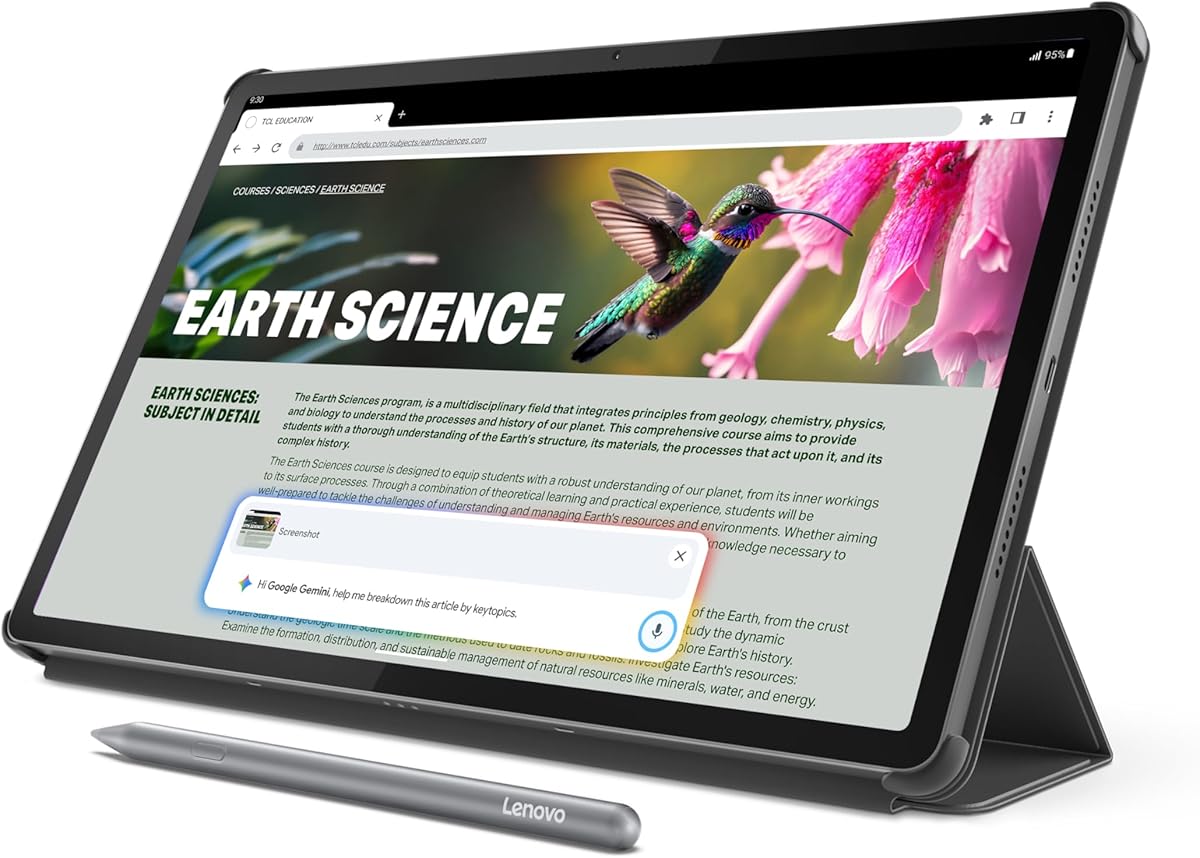
The Lenovo Idea Tab Plus combines a 4.6 rating with a generous 12.1-inch 2.5K IPS display and 90Hz refresh rate. It weighs just over a pound, making it one of the more portable large-screen options in the roundup. The included Lenovo Tab Pen and folio case improve its suitability as an everyday writing and study tool.
We may earn a commission when you buy through this link, at no additional cost to you.
Writing support comes from Lenovo Notepad, Squid, Nebo, and MyScript Calculator, covering handwritten notes, visual organization, sketchwork, and calculations. Circle to Search can identify content on the display using the pen or fingertip. For media and reading, up to 800 nits of brightness, TÜV Rheinland Low Blue Light certification, and quad Dolby Atmos-tuned speakers create a more versatile experience than a typical digital notebook.
The display remains a conventional IPS LCD, so users who want an E Ink-like, low-glare writing surface may find dedicated digital notebooks more comfortable. The MediaTek Dimensity 6400 and Mali-G57 MC2 graphics are suitable for everyday work but not positioned as high-end gaming hardware. Battery performance is stated at up to 13 hours of YouTube streaming, which should not be treated as a guarantee for every workload.
This is our recommended value-oriented pick because it delivers a sharp large display, adequate memory, a pen, a case, and useful learning software in one package. It fits students and casual journalers who want a colorful screen and broad app compatibility without moving to the highest tier of conventional Android tablets.
The 12.1-inch display offers more room for handwriting, diagrams, and highlighted readings, while the slim design remains easy to carry. The 2.5K resolution supports fine details and crisp text.
Bundled applications, a Tab Pen, and a folio case make the tablet ready for coursework and daily notes. Circle to Search and cross-device sharing add useful ways to move from reading to research.
We may earn a commission when you buy through this link, at no additional cost to you.
The Lenovo Idea Tab Pro offers a 4.6 rating and a 12.7-inch 3K LCD, making it one of the sharpest conventional screens represented. The MediaTek Dimensity 8300, 8GB of memory, 128GB of storage, and Wi-Fi 6E support provide a strong platform for notes, research, media, and more demanding tablet tasks.
We may earn a commission when you buy through this link, at no additional cost to you.
Its writing and study features are integrated into a larger Android environment. Google Gemini can assist with assignments, while Circle to Search uses the included Tab Pen Plus or a finger to locate information directly on screen. Mono and chromatic display modes can be switched to suit reading preferences, and the screen is Low Blue Light certified. Quad JBL Dolby Atmos speakers add strong sound for lectures and entertainment.
This model is not exclusively a paper tablet, and that distinction matters. Its LCD can reflect more surrounding light than a low-glare E Ink display, and its powerful gaming-oriented specifications may be unnecessary for journaling alone. The 12.7-inch footprint is also less pocketable, although it gives plenty of room for a spacious handwritten workspace.
The Idea Tab Pro is best for students who want a premium-feeling large screen, serious performance, and broad learning assistance. It is a good choice when one device must handle detailed notes, lectures, research, streaming, and recreational gaming, but a dedicated notebook remains preferable for distraction-free long-form writing.
The 3K panel provides generous room for reading, annotating, and reviewing course material. Display-mode switching helps users alternate between monochrome documents and colorful visual work.
The Dimensity 8300 and 8GB of memory create more headroom for multitasking, while 45W charging reduces downtime. This makes the tablet suitable for students who view journaling as one part of a broader digital workflow.
We may earn a commission when you buy through this link, at no additional cost to you.
The Wacom Intuos Small has a 4.4 rating and offers a different interpretation of a journaling tablet: it is a compact graphics surface rather than a self-contained notebook. Its active drawing area, included pen, and Wacom EMR technology provide precise control with a battery-free stylus that feels like pen on paper.
We may earn a commission when you buy through this link, at no additional cost to you.
Because it has no built-in screen, notes are created in a connected computer or compatible mobile workflow. Bluetooth allows wireless use, while a USB-A connection provides a direct alternative. The pen works with a broad range of software for drawing, painting, photo and video editing, and document markup, and the purchase includes Wacom software and online training.
Its main limitation is obvious but important: the Intuos cannot display books, notes, or reference documents on its own. A separate display is required, and that makes the setup less convenient for travel or spontaneous journaling. It also occupies a different role from general-purpose tablets, which provide full screens, apps, and media playback.
The Wacom Intuos Small is a compelling choice for artists, designers, or notebook owners who already work on a computer and value pen precision in a compact footprint. It is not the recommendation for someone who wants a self-contained reading and writing device, but for desktop-based journaling and markup, its specialized input surface can be an advantage.
Wacom EMR technology provides fine control without requiring a rechargeable or replaceable-battery pen. The compact active surface is especially convenient for sketching and detailed handwritten work.
Bluetooth and USB-A connectivity let users choose between uncluttered wireless use and a direct connection. Broad software compatibility makes the tablet useful across creative and document workflows.
We may earn a commission when you buy through this link, at no additional cost to you.
The reMarkable Paper Pro Move has a 4.3 rating and prioritizes portability over screen size. Its 7.3-inch Canvas Color display is smaller than the Paper Pro but is designed to look, feel, and sound like paper. The device is small enough to fit into a bag or jacket pocket, making it easier to carry than a full-size digital notebook.
We may earn a commission when you buy through this link, at no additional cost to you.
The package includes the Paper Pro Move, Marker Plus, six spare Marker tips, a black leather Book Folio, and a USB-C cable. Handwritten notes can be converted into typed text, and the included folio protects the tablet while supporting a more book-like setup. Tags and folders organize documents, while cloud synchronization makes captured content available through the mobile and desktop apps.
The small canvas can feel cramped for wide tables, detailed diagrams, or long documents viewed side by side with notes. Searching handwritten content is described as a subscription-based feature, which is relevant when long-term archives are central to a journal system. As with other color E Ink-style screens, the display should be understood as more muted than a conventional LCD.
Choose the Paper Pro Move for travelers, commuters, and minimalists who want the reMarkable writing experience in a pocketable form. It is ideal for quick reflections, meeting notes, and daily observations that benefit from being captured immediately. Users who need a large reading and markup surface should consider the larger reMarkable Paper Pro instead.
The paperback-inspired 7.3-inch format is easy to carry and supports spontaneous journaling. The included leather folio provides protection while preserving a traditional notebook feel.
Handwriting conversion and app synchronization allow journal entries to move beyond the device. Tags and folders keep small, quick-captured notes from becoming an unsearchable pile.
We may earn a commission when you buy through this link, at no additional cost to you.
The Samsung Galaxy Tab S10 FE+ carries a 4.7 rating, the highest among the conventional Android tablets in this guide. Its 13.1-inch display is the largest screen here, offering ample room for handwriting, reading, annotations, and media. With 256GB of storage, it also has substantial room for digitized notes, documents, and applications.
We may earn a commission when you buy through this link, at no additional cost to you.
Samsung's writing tools are especially relevant for journaling. Handwriting Assist straightens, aligns, and adjusts the spacing of handwritten words for a cleaner appearance. Math Solver can turn equations written with the S Pen into text, while Circle to Search provides a direct way to research content on screen. These features make the tablet particularly useful for students, professionals, and readers who value neat digital notes.
As a full Android tablet, it is less deliberately distraction-free than a dedicated digital notebook. Notifications, applications, and media functions add flexibility but can also interrupt a focused journaling session. Its large body requires more room in a bag, and its water resistance should be treated as durability support rather than permission for careless use around liquids.
The Galaxy Tab S10 FE+ is a strong premium choice for buyers who want an expansive journal that also functions as an entertainment and productivity device. It stands out for its display size, polished handwriting cleanup, and useful equation tools. Those who prefer a quiet paper-style environment may find a dedicated reMarkable or AINOTE device more satisfying.
The 13.1-inch display provides room for side-by-side notes, annotated readings, and handwritten outlines. It is especially useful for visual planners and students working with dense material.
Handwriting Assist cleans up letter alignment and spacing without requiring users to perfect every line by hand. Math Solver adds a practical conversion tool for equations written directly on the screen.
We may earn a commission when you buy through this link, at no additional cost to you.
The reMarkable Paper Pure is a focused 10.3-inch digital notebook with a 3.9 rating. Its third-generation black-and-white display is described as whiter and higher in contrast than earlier versions, and digital ink appears in 21ms. For users who want a traditional monochrome writing surface rather than color, it offers a clean alternative to the Paper Pro.
We may earn a commission when you buy through this link, at no additional cost to you.
The Marker Plus is included, and the device provides templates, uncluttered navigation, folders, tags, PDF markup, and handwriting-to-text conversion. It also supports sending articles, documents, and PDFs from Google Drive, Dropbox, Microsoft Word, and other services through reMarkable apps and plugins. Finished notes can be shared by email, making it a practical working document system as well as a journal.
The lack of color is the most obvious limitation for anyone who sketches with color, highlights categories in multiple hues, or wants a vivid reading display. Its 3.9 rating is also the lowest supplied in the group, so buyers should evaluate whether the focused paper experience outweighs the extra flexibility found in the larger color and Android options.
The Paper Pure is best for minimalist journalers, reading-focused note takers, and professionals who annotate monochrome documents. It delivers a fast, calm, paper-like experience without trying to imitate a full-color tablet. For color planning, multimedia study, or Android app flexibility, one of the larger Lenovo or Samsung models is the stronger choice.
The improved 10.3-inch display and 21ms response time prioritize legible ink and immediate feedback. Its simpler visual character can make handwritten journaling feel less like operating a computer.
Templates, handwriting conversion, tags, folders, and cloud-service plugins cover the core needs of a personal journal. Direct PDF annotation and easy sharing support practical document review.
We may earn a commission when you buy through this link, at no additional cost to you.
The best tablet for journaling depends on whether you prioritize realistic pen input, AI-assisted meetings, colorful study work, portability, or a minimal digital-paper experience. Screen technology, software, accessories, and long-term storage deserve careful consideration before purchase.
E Ink and color paper-style displays are designed to look more like a sheet of paper and generally reflect less light, making them comfortable for long handwritten sessions. Conventional IPS and LCD tablets offer brighter, more vivid color and faster scrolling, which is useful for drawing, studying, and reading illustrated material. A glossy screen may feel less natural to writers accustomed to paper, while an E Ink display may appear muted for color artwork.
A journaling tablet depends heavily on the interaction between display and stylus. Look for low latency, natural friction, pressure sensitivity, and a tip that glides without feeling slippery. Some devices include the pen and case, while others require separate accessories. Dedicated notebooks often tune the stylus and screen as a matched system, whereas general-purpose tablets may prioritize pressure levels and shortcut features over a paper-like texture.
A good journal should make captured ideas easy to revisit. Compare templates, handwriting conversion, folders, tags, search, cloud synchronization, PDF markup, and document import. AI-oriented devices can transcribe conversations, summarize meetings, extract action items, and translate speech, while learning tablets may bundle note, sketch, and calculation applications. General Android tablets provide broader app flexibility but may not feel as focused.
An 8.2-inch or 8.4-inch notebook is easy to carry and comfortable for short entries, meetings, and travel. An 11-inch model provides a more balanced writing area, while 12.1-inch, 12.7-inch, and 13.1-inch screens are better for diagrams, side-by-side research, and detailed planning. Larger displays generally mean more bulk, so consider how often you will journal away from a desk and whether a folio or bag can accommodate the device.
E Ink devices can remain useful for long periods between charges, especially when the backlight is off, while conventional tablets may use more power for color displays and video. Published battery figures often refer to specific activities such as video streaming and do not represent every handwriting, meeting-recording, or backlight workload. Consider how often you travel and whether your journal contains audio that must remain available throughout a meeting.
Local storage protects access to important notes, while cloud synchronization makes journals available across phones and computers. Some services include local storage, cloud capacity, OneDrive integration, Google Drive support, Dropbox connectivity, or Microsoft Word workflows. Review file formats and whether searchable handwritten content requires a subscription. Also consider Wi-Fi performance, offline recording, and whether proprietary software locks the device into one ecosystem.
Digital notebooks minimize distractions and often create a calmer environment for reflection. Android tablets add messaging, entertainment, web browsing, gaming, and a much larger application ecosystem, but those same features can interrupt focused journaling. AI meeting tablets occupy the middle ground, providing specialized recording and transcription without the full breadth of a conventional tablet experience. Your ideal balance depends on whether the device is primarily a journal, a study computer, or both.
Pen support is central, but a stylus designed for one tablet may not work with another. Some bundles include a pen, folio, replacement tips, and charging cable, while the Wacom Intuos Small includes a pen but relies on a separate display. A folio can protect the device and support desk use, while a case makes travel more practical. Verify the exact package contents, stylus model, charging method, and whether the chosen pen supports the intended features.
Begin by creating a simple structure that matches how you think. Use one notebook for daily reflections, another for projects, and separate notebooks for work or classes if context matters. Configure templates, handwriting conversion, tags, folders, and cloud synchronization before relying on the device during a busy day. Taking a few minutes to test the stylus and document workflow prevents avoidable friction later.
Write naturally first, then organize. Add titles, dates, tags, and links as ideas accumulate rather than interrupting the flow of every page. For recorded meetings, confirm that audio is saved locally and that transcription receives a privacy review, especially when conversations contain sensitive information. Back up important journals to the device's local storage and the connected cloud service, and periodically verify that backups can be opened.
Care for the surface and pen with the same attention given to a physical notebook. Keep the tablet in its folio, avoid pressing excessively hard with the stylus, and protect the display from sharp objects. Use the supplied charging cable and compatible charger, avoid exposing the device to extreme heat or moisture, and clean the surface gently with a soft, dry cloth. Software updates and changing service terms can affect features, so review them before relying on a new workflow.
E Ink is usually better for long, distraction-free handwritten sessions because its surface resembles paper and reflects less light. LCD is better for vivid color drawing, smooth scrolling, video, and broader app-based study tools. The best choice depends on whether the tablet is primarily a quiet journal or a multifunctional display.
A stylus is strongly recommended because finger input is not precise enough for sustained handwriting. Some models include a compatible pen, while others require a separate purchase. Confirm compatibility, pen features, and whether pressure or shortcut buttons matter to your preferred note-taking application.
An 8.2-inch or 8.4-inch screen is convenient for travel, while an 11-inch display offers a more balanced writing area. Larger 12-inch and 13-inch screens suit detailed diagrams and document annotation but are bulkier. Consider where you will write most often and how much room your handwriting requires.
Yes. reMarkable models include handwriting conversion, AINOTE products offer multilingual recognition, and Samsung provides Handwriting Assist for cleaning up written text. Accuracy can vary with handwriting, language, and layout, so important passages should be checked against the original note.
They can be useful for converting conversations into searchable notes, summaries, and action items. They are less relevant for purely personal entries and may raise privacy questions for confidential meetings. Review local recording, encryption, cloud processing, and account settings before using these features for sensitive material.
Cloud storage is not absolutely necessary, but it makes notes available across devices and provides a useful backup. Dedicated paper tablets often offer local storage plus optional paid cloud features, while Android tablets generally provide more familiar file and application management. Keep a local copy of irreplaceable entries even if synchronization is enabled.
A drawing tablet can provide excellent pen control for handwriting, but it normally requires a separate computer or display because the active surface is not a screen. The Wacom Intuos Small is therefore most practical for users already accustomed to a desk-based setup and seeking a specialized input device.
Choose a dedicated notebook for minimal distractions, paper-like writing, and a focused organization system. Choose an Android tablet when you also want streaming, games, messaging, and a wide range of applications. A middle-ground AI notebook can provide transcription and summaries with a more purpose-built writing environment.
The reMarkable Paper Pro is the standout for a large, dedicated, paper-like writing experience, while the Lenovo Idea Tab Plus offers the strongest balance of large color display, included accessories, and value. The Samsung Galaxy Tab S10 FE+ is the premium Android choice, combining a 13.1-inch canvas with polished handwriting tools and extensive storage.
Prioritize the feature that will affect every journal entry: pen feel, screen comfort, note organization, or meeting capture. Smaller E Ink notebooks suit portability, AI-focused devices excel in transcription and summaries, and conventional tablets provide broader entertainment and application flexibility. For buyers who do not want a separate computer and stylus, the Wacom Intuos Small is less convenient despite its excellent precision.
Before buying, verify the current stylus, case, storage, cloud-service, and subscription terms for the exact model. Product features, availability, and pricing can change, and personal writing habits matter more than a single specification. Choose the tablet that feels natural in the way you plan to journal, then give its organization and backup systems enough attention to make the pages easy to revisit.