
Acer ProDesigner PE270K L1
5.0Editor score
99% Adobe RGB coverage
Calman Verified Delta E <1
4K and 144Hz modes
A monitor for Adobe Illustrator should make colors dependable, artwork detailed, and complex vectors easy to inspect. The most important qualities include accurate color reproduction, sufficient resolution, wide viewing angles, smooth scaling, and a panel that remains consistent as you move around your desk.
This guide compares ten professional, creator-focused, and general-purpose displays using the specifications and manufacturer features available for each model. It considers panel resolution, color-gamut coverage, calibration claims, connectivity, ergonomics, HDR support, and features that improve workflows involving Illustrator, Photoshop, and related Adobe tools.
Each review explains who can benefit most from a particular model and where compromises appear. The top selections emphasize color accuracy, practical connectivity, and resolution, while the remaining options serve different creative priorities. Product availability and pricing can change, so confirm current specifications and offers before purchasing.
5.0Editor score
4.2Editor score

4.0Editor score
As an Amazon Associate we earn from qualifying purchases.
The comparison below highlights resolution, color coverage, major connectivity features, and refresh-related specifications to show how each display fits a different Illustrator workflow.



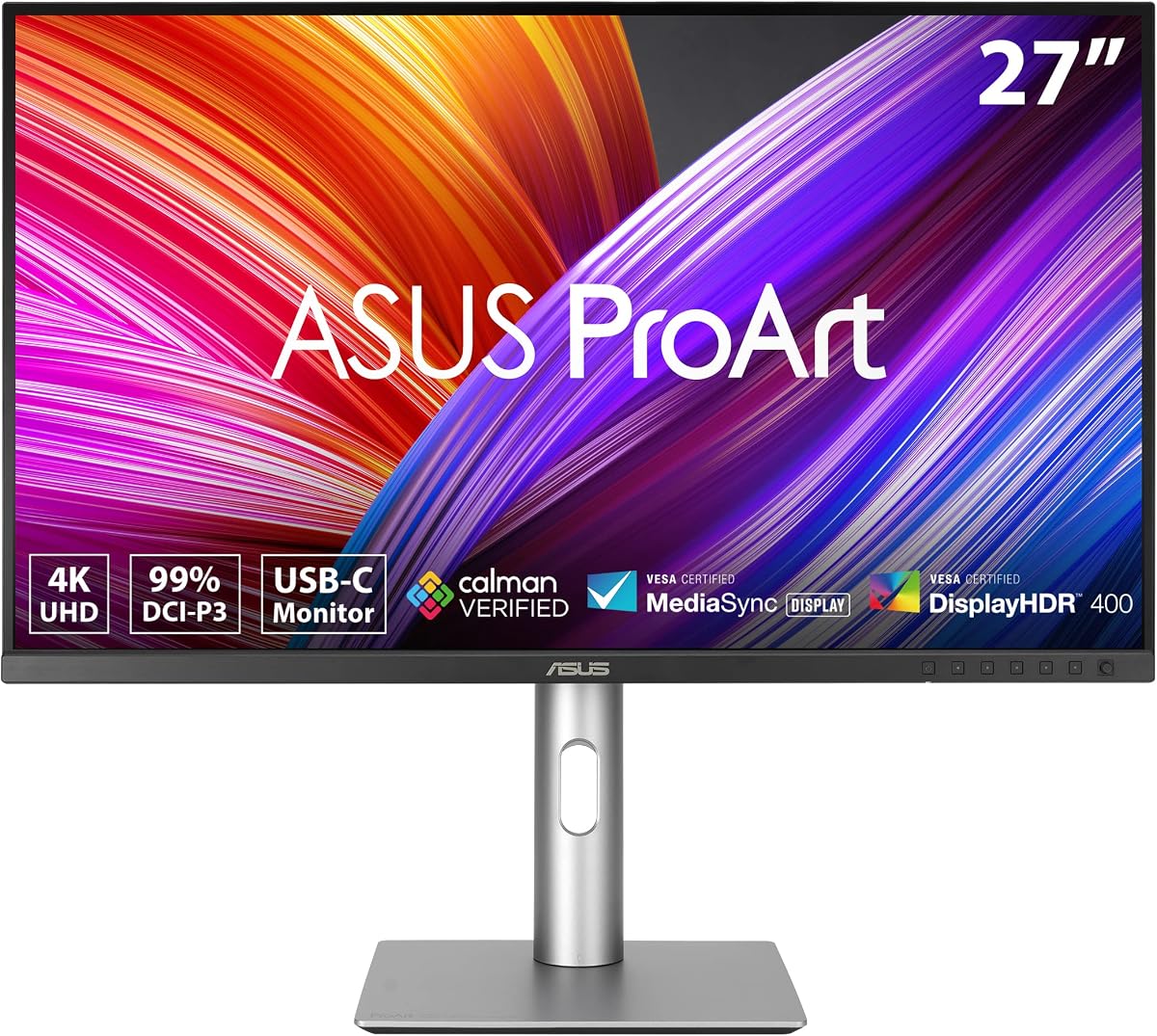
The ASUS ProArt PA279CRV is a strong all-around choice for Adobe Illustrator users who need dependable color, ample canvas space, and a clean desk setup. Its 4.2 rating reflects a broadly capable package rather than a specialized gaming or ultra-high-resolution display. The 27-inch IPS panel renders at 3840 by 2160 and supports 99% Adobe RGB and 99% DCI-P3 coverage.
We may earn a commission when you buy through this link, at no additional cost to you.
Color accuracy is a major strength because Illustrator work often involves brand palettes, print preparations, icons, and subtle tonal relationships. ASUS factory pre-calibrates the panel to Delta E less than 2 and identifies it as Calman Verified. The display also includes 96-watt USB-C Power Delivery, a USB hub, DisplayPort, and HDMI, making it particularly convenient for a Mac-based workflow.
The main compromise is resolution. At 4K, it provides more working room than Full HD but not the extremely fine detail available on 5K or 6K professional panels. HDR support also appears intended for general creative use rather than demanding reference-grade HDR mastering. Even so, Illustrator is primarily a vector workspace, where accurate color, stable geometry, and comfortable scaling often matter more than extreme pixel density.
This is the most balanced recommendation for illustrators who want a dependable 4K panel, broad color coverage, modern single-cable connectivity, and an adjustable stand without moving to a specialist reference display. It is particularly attractive for Mac users, while its daisy-chain support also makes it reasonable for a multi-monitor studio.
Factory calibration to Delta E less than 2 supports consistent decisions when selecting brand colors and building illustrations intended for print. The 99% Adobe RGB coverage is especially relevant when an Illustrator file will move into a broader print-production workflow.
DisplayPort over USB-C carries the display signal while providing up to 96 watts of charging and access to the integrated USB hub. That reduces cable clutter and leaves the desk ready for focused vector work.
We may earn a commission when you buy through this link, at no additional cost to you.
The BenQ PD2732U is designed for creative professionals who want color consistency, Mac-oriented controls, and a complete professional connection system. Its 4.0 rating is supported by a feature set aimed at demanding studio work: full-panel calibration, 99% Adobe RGB and Display P3 coverage, 100% sRGB and Rec.709 coverage, and a factory-calibrated Delta E of no more than 2.
We may earn a commission when you buy through this link, at no additional cost to you.
Uniformity deserves particular attention in a display used for illustration. BenQ calibrates the entire panel rather than relying only on a central measurement, helping limit visible shifts in color or brightness between sections of the canvas. AQCOLOR Pilot, Calman Verified status, and Pantone Validated status further support a color-managed workflow, while the Nano Matte Black panel helps control reflections in bright rooms.
Its Mac support is unusually comprehensive. M-book mode, iKeyboard Control, and iDevice Color Sync are designed to integrate more closely with Apple hardware. Thunderbolt 4 supplies up to 90 watts of charging, 40Gbps data transfer, and daisy-chain support for dual 4K displays. A built-in KVM also helps users move between systems with one keyboard and mouse.
The trade-off is that this is a specialized professional tool rather than a casual secondary monitor. The matte surface can make some content feel less glossy than a conventional glossy display, and the included Hotkey puck adds another control method to learn. For a professional Mac studio or a designer handling both vector and color-critical raster work, it offers one of the most coherent packages in the guide.
Full-panel calibration helps maintain a steadier visual field from one edge of the display to the other. This matters when large illustrations contain subtle gradients or when a client evaluates the entire composition from different positions.
Thunderbolt 4 can carry data, video, and charging while also supporting a daisy-chained dual-4K arrangement. The result is a cleaner connection structure for studios that rely on more than one application or reference display.
We may earn a commission when you buy through this link, at no additional cost to you.
The Acer ProDesigner PE270K L1 stands out for offering professional calibration and flexible operating modes in one 27-inch 4K display. It carries a 5.0 rating, the highest in this roundup, and the most striking specification is its factory calibration to Delta E less than 1 under Adobe RGB mode, independently verified by Calman.
We may earn a commission when you buy through this link, at no additional cost to you.
Its Dynamic Frequency Mode lets the display operate at 4K and 72Hz for color-critical work or 1080p and 144Hz for faster motion. That makes it less narrowly focused than a conventional office monitor. Coverage of 99% Adobe RGB and 96% DCI-P3 provides a useful foundation for print and video, while Acer Creator Hub simplifies color-space switching, split-screen layouts, and calibration.
There is a logical tension in the dual-mode design: changing to the 1080p speed mode reduces the native pixel canvas and effectively doubles apparent working size. Illustrator professionals who depend on fine 4K detail should remain in Precision Mode. DisplayHDR 400 provides a basic HDR preview, but it is not positioned as a high-luminance reference solution.
This display is recommended for budget-conscious artists who value measurement-driven color accuracy and want one panel to cover illustration, motion review, and general creative work. A built-in KVM, 90-watt USB-C connection, Smart Dial, and daisy-chain support add useful workflow value. For many users, its combination of accuracy and versatility outweighs the resolution change in its faster mode.
The stated Delta E less than 1 under Adobe RGB mode is meaningful for color-critical illustration work. Each unit includes an individual test report, providing reassurance that the panel was calibrated as an individual component rather than merely assigned a generic specification.
The ability to move between 4K precision and 1080p speed makes this useful when an Illustrator project occasionally gives way to animation playback or fast-motion review. It is a flexible feature, although the change in canvas size must be considered.
We may earn a commission when you buy through this link, at no additional cost to you.
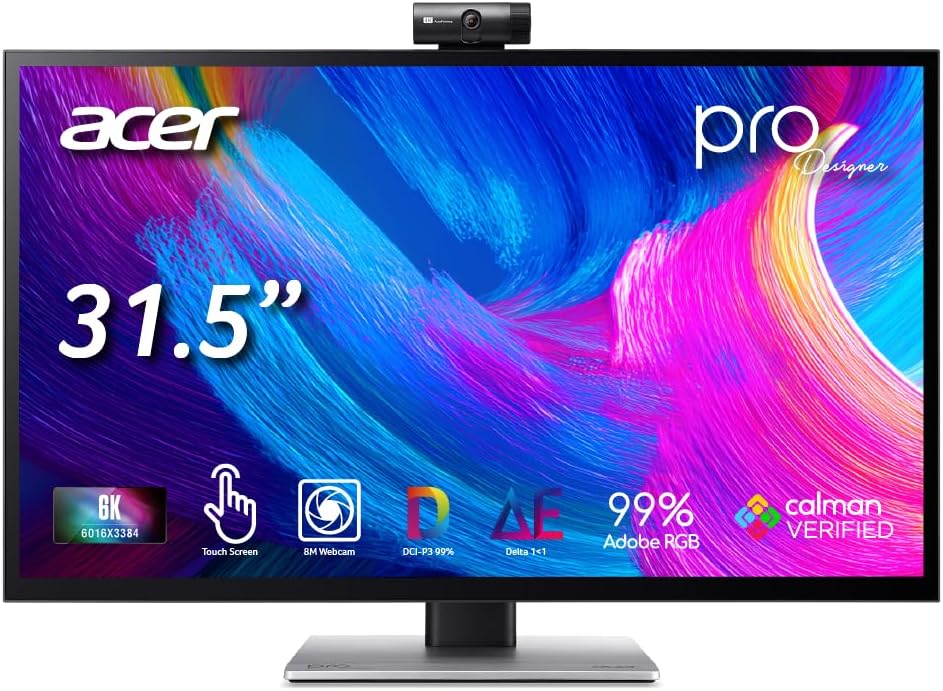
The Acer ProDesigner PE320QXT is built for creators who want extraordinary detail and the option to work directly on the display. Its 4.6 rating reflects a 31.5-inch Quantum-Dot IPS panel with 20.4 million pixels, 10-point touch, and support for MPP 2.0 active styluses. The 6K resolution is especially useful for complex vectors and large-format artwork.
We may earn a commission when you buy through this link, at no additional cost to you.
Factory calibration to Delta E less than 1, Calman Verified status, 99% Adobe RGB, and 99% DCI-P3 make it appropriate for print-oriented illustration and digital art. The display also supports DisplayHDR 600 with peak brightness of 600 nits, allowing a more meaningful HDR preview than many creator monitors. Acer Creator Hub handles color-space switching, calibration, and split-screen tools.
Touch is the defining feature, but it also creates an expectation for pen input. The display supports up to 4,096 pressure levels and tilt recognition with compatible MPP 2.0 styluses, yet the stylus is not included. Users who only need precise mouse control may never activate that capability, while concept artists can sketch, annotate, and retouch without a separate tablet.
This is a strong recommendation for an illustrator who values fine detail, touch interaction, and a large physical canvas. The 31.5-inch size, adjustable stand, webcam, and four-microphone array also support client presentations. It demands more desk space than a 27-inch model, but that footprint is justified for users who actively exploit the 6K resolution and direct-input features.
The 6K panel gives vector artists substantially more pixel information than a conventional 4K display. Fine anchor points, thin strokes, masks, and detailed reference boards can be inspected with greater clarity, making zoom work less disruptive.
Ten-point touch and active-stylus support allow sketching and retouching directly on screen. For artists who combine Illustrator with concept development, this can reduce the amount of switching between a drawing tablet and the vector canvas.
We may earn a commission when you buy through this link, at no additional cost to you.
The ASUS ROG XG27AQDMGR is an unconventional but potentially useful choice for illustrators who prioritize contrast, deep blacks, and high-refresh interaction. Its 4.6 rating reflects a 26.5-inch glossy WOLED panel at 2560 by 1440, with a 240Hz refresh rate and 0.03ms gray-to-gray response time.
We may earn a commission when you buy through this link, at no additional cost to you.
The display covers 99% DCI-P3 and is factory calibrated to Delta E less than 2. True 10-bit color can produce smoother gradients than standard 8-bit output, which is valuable in illustration backgrounds and tonal artwork. VESA DisplayHDR 400 True Black compliance and the inherently high contrast of OLED produce a more dimensional image than conventional IPS panels.
The key limitation for professional Illustrator work is color space and resolution. The stated Adobe RGB coverage is only 95%, below the 99% offered by several creator-focused alternatives, and QHD provides a smaller canvas than 4K, 5K, or 6K. Glossy OLED also produces reflections that may be distracting in a bright studio, and static interface elements require thoughtful use of the OLED protection features.
This monitor makes the most sense for artists who also value motion, use dark interfaces, and need punchy contrast more than maximum print-oriented gamut coverage. The 240Hz refresh rate provides exceptionally fluid navigation, while ASUS DisplayWidget Center and OLED Care Pro help manage the panel. It is better suited to digital illustration and mixed creative use than to strict Adobe RGB print preparation.
A 240Hz refresh rate and 0.03ms response time make pen input, zoom actions, and interface changes feel highly responsive. The speed is not required for static vector work, but it is valuable for artists who move frequently between drawing, animation, and interactive canvas tools.
OLED's deep blacks can give dark artwork a distinct visual impact, while true 10-bit color supports subtle tonal transitions. The glossy finish improves perceived clarity but demands careful control of studio lighting.
We may earn a commission when you buy through this link, at no additional cost to you.
The ASUS PA279CRV-P offers a 4.5 rating and combines a 27-inch 4K IPS panel with the same broad color coverage and factory calibration found in the closely related ProArt PA279CRV. It is a particularly relevant option for Mac users and organizations that require TAA-compliant equipment.
We may earn a commission when you buy through this link, at no additional cost to you.
The display supports 99% DCI-P3 and 99% Adobe RGB, and its Calman Verified calibration targets Delta E less than 2. That makes it suitable for brand illustration, packaging concepts, and artwork that will be prepared for print. A 178-degree wide-view IPS panel helps maintain consistent viewing as the user shifts position.
Connectivity is handled through DisplayPort over USB-C with 96-watt Power Delivery, DisplayPort, HDMI, and a built-in USB hub. The included package contains a DisplayPort cable, HDMI cable, power cord, quick-release stand, calibration report, and warranty card. Height, tilt, swivel, and pivot adjustments support a comfortable working position.
Its main question is whether TAA compliance or the particular package is worth considering alongside the standard PA279CRV. For a Mac creator who values cable management, color accuracy, and an adjustable 4K workspace, it is a polished choice. HDR 400 is modest, however, and artists needing deeper detail should consider 5K or 6K alternatives.
Ninety-nine percent Adobe RGB coverage gives this ProArt model a solid foundation for print-oriented illustration. The factory report included in the box provides a useful record of the panel's initial calibration for color-managed workflows.
USB-C handles video and up to 96 watts of charging while the USB hub connects peripherals. Additional DisplayPort and HDMI inputs make it easier to move between a Mac and a second workstation without constantly reconfiguring the display.
We may earn a commission when you buy through this link, at no additional cost to you.
The ASUS ProArt PA27JCV is built around resolution, making it a compelling option for illustrators who spend considerable time examining vector paths, complex masks, and small interface details. Its 3.6 rating is the lowest among the products reviewed, so buyers should assess the available features against their exact workflow rather than treating it as a universal recommendation.
We may earn a commission when you buy through this link, at no additional cost to you.
The 27-inch panel renders at 5120 by 2880, providing far more native detail than a 4K model without moving to a larger 31.5-inch panel. Color coverage includes 100% sRGB, 99% DCI-P3, and 95% Adobe RGB. Factory pre-calibration to Delta E less than 2 and Calman Verified status support dependable work in standard digital color spaces.
For print preparation, 95% Adobe RGB is the main limitation because several competing creator monitors reach 99%. That difference can matter for saturated colors near the edge of the Adobe RGB gamut. On the other hand, 5K resolution gives Illustrator artists a much more spacious, finely detailed working area, which may outweigh fuller gamut coverage for many digital projects.
Ambient-light and backlight sensors provide intelligent brightness adjustment, while the automatic KVM function switches between two connected computers using one keyboard and mouse. USB-C supports data, video, and 96-watt charging. This is a strong choice for a Mac illustrator who values pixel density and smart brightness over maximum Adobe RGB coverage.
A 5K canvas reveals fine vector paths, anchor points, and small interface elements with less need to zoom. That precision can improve path editing and make dense illustrations easier to inspect without sacrificing the familiar dimensions of a 27-inch display.
Ambient-light and backlight sensors automatically adjust brightness to help maintain a more consistent viewing experience. The auto KVM feature also reduces friction when the artist alternates between a desktop and laptop.
We may earn a commission when you buy through this link, at no additional cost to you.
The Samsung Odyssey OLED G6 is primarily a gaming display, but its 4.7 rating and QD-OLED technology make it relevant to illustrators who value vivid color, strong contrast, and exceptionally fluid interaction. The 27-inch panel operates at 1440p with a 240Hz refresh rate and 0.03ms response time.
We may earn a commission when you buy through this link, at no additional cost to you.
Samsung states that the screen is Pantone Validated and can reproduce more than 2,100 colors and over 110 skin-tone shades. HDR10 support adds brighter highlights and deeper shadows, while Glare Free technology is intended to keep external reflections from obscuring the image. The result can be visually striking for digital art, character design, and presentations.
For professional Illustrator work, the lack of a specified Adobe RGB coverage figure is a meaningful limitation. QHD also provides fewer pixels than the 4K, 5K, and 6K alternatives in this guide. OLED Safeguard thermal modulation is designed to help address burn-in risk, but a designer working for long periods on static interface elements should still use sensible screen-management habits.
This is a practical secondary monitor for an artist who primarily works in sRGB and wants smooth response for animation, game art, or interactive previews. Its 240Hz speed, high contrast, and validated color make it engaging, while the height-adjustable stand supports comfortable positioning. Artists with strict print requirements should favor a model that explicitly states Adobe RGB coverage.
QD-OLED color and strong contrast can make saturated digital artwork and character designs appear more immersive. Pantone Validated status adds confidence for projects centered on standard RGB workflows, although it is not a substitute for documented Adobe RGB coverage.
The 240Hz refresh rate and 0.03ms response time keep navigation and drawing interactions smooth. These traits are especially useful when the Illustrator workflow also includes animation previews, motion references, or screen-captured playback.
We may earn a commission when you buy through this link, at no additional cost to you.
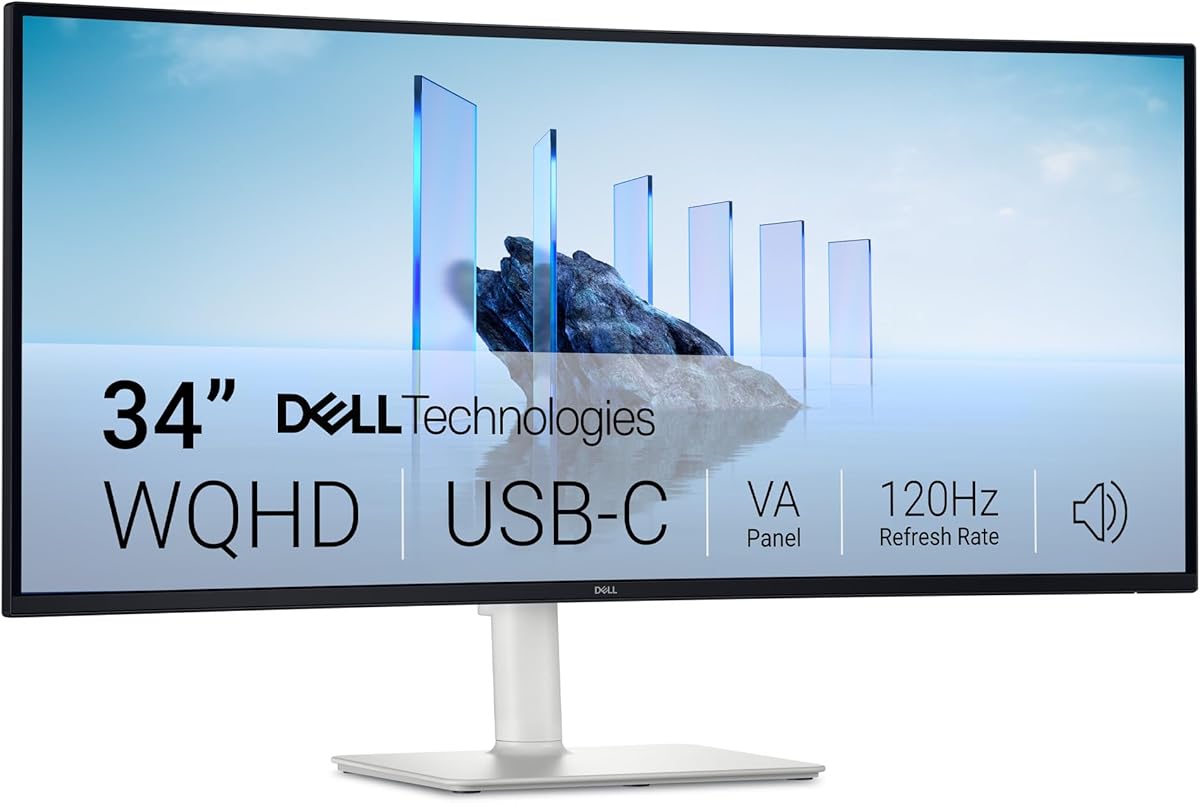
The Dell S3425DW is a 34-inch curved monitor designed for wide, immersive productivity rather than specialist color reference. Its 4.4 rating reflects a capable WQHD VA panel, 120Hz refresh rate, AMD FreeSync Premium support, and a relatively modern USB-C connection with up to 65 watts of power delivery.
We may earn a commission when you buy through this link, at no additional cost to you.
The large physical width can give Illustrator users more room for a canvas, tools, swatches, and reference panels at the same time. The curved format may draw the user into a wide composition, while 99% sRGB and 95% DCI-P3 coverage provide solid performance for digital artwork intended for screens. HDR readiness and a 3000:1 contrast ratio add visual depth.
Professional print work is less compelling because Dell does not list Adobe RGB coverage or a factory-calibrated Delta E target in the supplied specifications. The VA panel also differs from the wide-view IPS panels emphasized by many creator monitors, so it may not be the first choice for users who require exact consistency as their viewing angle changes.
The S3425DW is best for an artist who wants room to work across a wide desktop, uses the display for general design tasks, and values a clean USB-C setup. Built-in sound, ComfortView Plus blue-light reduction, and a 120Hz refresh rate make it comfortable for mixed creative sessions. Strict color-managed print workflows should look to the ProArt and ProDesigner alternatives.
A 34-inch screen can accommodate large artwork beside swatches, layers, asset libraries, and reference material. The ultrawide proportions are useful for panoramic illustration boards, even though the native WQHD resolution gives less pixel detail per inch than higher-resolution creator panels.
ComfortView Plus reduces blue-light output while the VA panel's 3000:1 contrast ratio can provide a more pronounced image. The 120Hz rate and FreeSync Premium support also create a fluid desktop experience during pen work and preview playback.
We may earn a commission when you buy through this link, at no additional cost to you.
The Dell S2425HSM is the most compact option in the guide and works best as an entry-level or secondary display for Adobe Illustrator. Its 4.7 rating reflects a 23.8-inch Full HD panel with a 144Hz refresh rate, 1ms Moving Picture Response Time, AMD FreeSync, integrated speakers, and a highly adjustable stand.
We may earn a commission when you buy through this link, at no additional cost to you.
The monitor's main advantage is versatility rather than specialist image quality. Full HD resolution is sufficient for interface work, smaller illustrations, asset review, and complementary panels, while 144Hz keeps cursor movement and canvas navigation fluid. Two integrated 3W speakers can support quick client reviews without requiring separate desktop audio.
The limitations are clear for professional vector work. A 23.8-inch Full HD panel has a much smaller working canvas and fewer pixels than the 4K, 5K, or 6K models listed here. Dell does not specify Adobe RGB or DCI-P3 coverage, a factory Delta E target, or creator-oriented calibration features, so the display cannot be evaluated as a color-reference panel from the available data.
This is a sensible choice for students, occasional illustrators, or professionals who want a tidy second screen. Height, tilt, pivot, and swivel adjustment make it easy to align beside a primary display, while the TÜV-certified eye-comfort features and blue-light reduction support longer sessions. For the main display of a professional art workflow, a higher-resolution ProArt or ProDesigner model is preferable.
The 23.8-inch format fits comfortably on a smaller desk and can sit beside a laptop or larger production display. It is useful for showing layers, references, notes, or a secondary Illustrator artboard.
A 144Hz refresh rate and 1ms MPRT keep menu navigation and pointer movement responsive. While color-critical requirements are limited, the speed makes everyday creative work feel comfortable and modern.
We may earn a commission when you buy through this link, at no additional cost to you.
The right Illustrator display balances accurate color, enough pixels for precise artwork, dependable connectivity, and comfortable ergonomics. Specialized reference features matter, but resolution, workflow design, and the intended destination of the artwork should guide the final choice.
Adobe RGB is one of the most important specifications when illustrations may be prepared for print. A display with 99% Adobe RGB coverage can represent substantially more saturated color than a basic sRGB screen, reducing the need to estimate how vivid artwork will appear after output. The ASUS ProArt PA279CRV, ASUS PA279CRV-P, Acer ProDesigner PE270K L1, and Acer ProDesigner PE320QXT all list 99% Adobe RGB coverage.
Choose 99% Adobe RGB coverage when print, packaging, branding, or broad-gamut source artwork is central. The ASUS ProArt PA27JCV lists 95%, which remains useful but does not match the leading creator displays. General-purpose and gaming-oriented models in this guide do not state Adobe RGB coverage, making them better suited to screen-first digital work.
Color coverage tells you how much of a gamut the panel can display, while calibration accuracy describes how closely it reproduces the intended values. A lower Delta E target generally indicates a smaller measured difference between displayed and target colors. The Acer ProDesigner models are specified at Delta E less than 1 in their respective standard or Adobe RGB test conditions, while several ASUS ProArt monitors are factory pre-calibrated to Delta E less than 2 and are Calman Verified.
Prioritize calibration when decisions about color must translate reliably to other screens or printed output. Also check which color space is used for the stated result, because measured accuracy can vary between modes. A strong Delta E specification is most useful when combined with wide gamut coverage, stable hardware, and a workflow that consistently uses a defined color profile.
Resolution determines how much artwork and interface can fit on screen and how much fine path detail you can see without zooming. The Acer PE320QXT leads this list with 6K resolution on a 31.5-inch panel, followed by the ASUS PA27JCV at 5K. Several 27-inch alternatives use 4K, while the compact Dell S2425HSM uses Full HD and the wider Dell S3425DW uses WQHD.
Choose 5K or 6K for detailed vector editing, large compositions, and frequent zooming. A calibrated 4K display is a strong middle ground for many illustrators because it provides more space and clarity than WQHD. Full HD can work for smaller artwork and secondary tasks, but it is less comfortable for precision work. Always balance resolution against screen size, since very dense pixels can make interface elements physically small.
IPS panels are common among the professional options in this guide and are generally associated with broad viewing angles and consistent color. The Acer PE320QXT uses Quantum-Dot IPS, while the Dell S3425DW uses VA and several gaming-oriented models use OLED. Each technology has visual trade-offs, including reflection behavior, contrast, and how the display looks in a bright room.
For a professional illustrator, consistency across the screen and viewing angle is often more valuable than a dramatic contrast advantage. Matte creator panels can control reflections during long sessions, while glossy OLED screens can look vivid but may mirror studio lights. Consider how your room is lit and whether the display will be positioned directly opposite a window.
A modern digital workflow benefits from a single-cable connection that carries video, data, and power. The ASUS ProArt PA279CRV and PA279CRV-P provide up to 96 watts over USB-C, while the Acer PE270K L1 provides up to 90 watts. The BenQ PD2732U uses Thunderbolt 4 for up to 90 watts, 40Gbps transfers, and daisy chaining. The Acer PE320QXT also supports 90 watts over USB-C.
Prioritize USB-C when you use a laptop and want a clean desk. Thunderbolt 4 is advantageous for studios with demanding data transfers, multiple 4K displays, or a broader device ecosystem. Check that your computer supports the required video mode and power profile, especially when connecting a 5K or 6K display. The included KVM features on selected models can further simplify switching between computers.
Vector work often requires long periods of close visual inspection, so the stand should permit a natural viewing position. Height adjustment, tilt, swivel, and pivot are common on the ASUS ProArt and Acer ProDesigner models. The Dell S2425HSM also supports all four adjustments, while the Dell S3425DW offers a height-adjustable stand with pivoting, tilting, and swiveling.
Match the screen size to your desk and viewing distance. A 31.5-inch 6K panel offers detail but requires more space than a compact 23.8-inch model. Portrait orientation can help with long vertical illustrations, though only some of the listed stands pivot that far. Position the top of the screen near eye level and adjust brightness and contrast for the room rather than relying only on factory defaults.
HDR support can help preview artwork destined for HDR displays, but certification levels determine the strength of the result. The Acer PE320QXT carries DisplayHDR 600 certification, while the Acer PE270K L1 and ASUS ROG XG27AQDMGR offer DisplayHDR 400. These levels differ substantially, and a gaming refresh rate does not by itself imply color-reference accuracy.
Choose a higher HDR certification when reviewing highlights and shadows is a regular requirement. High-refresh models such as the Samsung Odyssey OLED G6, ASUS ROG XG27AQDMGR, and Dell S2425HSM are useful for animation and smooth interaction, but their color-gamut specifications differ. Illustrator users should prioritize color-space coverage and calibration before refresh rate unless motion is central to the work.
Touch input can make a display valuable to illustrators who sketch, annotate, or retouch directly on screen. The Acer ProDesigner PE320QXT supports ten-point touch and MPP 2.0 active pens with 4,096 pressure levels and tilt recognition. The included stylus reference is inconsistent with the supplied listing, so compatible input hardware should be checked before purchase.
Choose touch when direct manipulation, client annotations, or concept sketching is a regular part of the process. Traditional Illustrator work with a mouse, trackpad, or tablet remains fully possible on a non-touch monitor. Touch should complement rather than determine the choice unless an artist actively wants a pressure-sensitive, display-based workflow.
Begin by connecting the display with the interface that best matches your computer. For USB-C or Thunderbolt models, use a certified cable capable of the advertised video mode and power delivery. After Windows or macOS detects the display, open the operating system's display settings and choose the native resolution. Avoid adding unnecessary scaling, because Illustrator already provides precise zoom control and a scaled desktop can make small vector controls harder to reach.
Next, establish a consistent color workflow. Select the intended output space in Illustrator, such as sRGB for screen-focused artwork or Adobe RGB for print-oriented work, and ensure the monitor's matching color mode is active. Use the bundled calibration report, AQCOLOR Pilot, or Acer Creator Hub where applicable. Keep the display at a stable brightness, disable dynamic screen-saver variations that could alter the viewing experience, and avoid using color transformations that change how artwork appears unexpectedly.
Care for the panel by cleaning it with a soft, lint-free cloth and avoiding liquids directly on the screen. Do not press on OLED displays, leave a static bright interface on an OLED model indefinitely, or place persistent UI elements over a dark background without allowing the display to enter a screensaver. For IPS and QD-IPS models, periodic calibration checks are useful, while high-brightness HDR use should be matched to the color-management demands of the project rather than applied automatically to every file.
A 4K monitor is a strong practical choice for most professional illustrators because it provides more canvas space and finer path detail than Full HD or WQHD. A 5K or 6K panel is better when you routinely zoom into complex artwork, need several applications side by side, or work with highly detailed illustrations. The most important requirement is still a comfortable size and a calibrated, color-accurate panel.
It matters most when your work is intended for print, packaging, branding, or other wide-gamut delivery. For illustrations viewed primarily on the web or in applications that use sRGB, 100% sRGB coverage may be sufficient. If Adobe RGB is important, select a display that explicitly states Adobe RGB coverage and a meaningful factory-calibration target rather than assuming a generic wide-gamut label is equivalent.
Matte models are generally easier to use in brightly lit rooms because they reduce distracting reflections. Glossy OLED panels can look more vivid and provide strong perceived contrast, but they are more sensitive to studio lighting and show fingerprints. The best choice depends on the environment: controlled lighting may favor gloss, while frequent reflections or bright ambient light may favor a matte professional panel.
A higher refresh rate makes menus, cursor movement, pen input, and zooming feel smoother, but it does not improve color accuracy or static vector detail. It is worthwhile for artists who also animate, review motion, or value fluid interface response. Color gamut, calibration, resolution, and ergonomics should remain the primary criteria for a dedicated Illustrator display.
Yes, especially if your work is primarily digital and displayed in sRGB. Gaming monitors can provide fast response, smooth interfaces, and excellent contrast, but some focus on speed rather than wide-gamut accuracy or factory calibration. Check for explicit Adobe RGB coverage, calibration results, and panel consistency if your artwork is destined for print or professional color-managed production.
A 27-inch panel is often easier to fit on a standard desk and can still provide excellent 4K or 5K detail. A 31.5-inch panel offers more physical workspace and may suit panoramic compositions, touch work, or side-by-side tools, but it requires more desk depth and appropriate viewing distance. Consider your desk, posture, application layout, and the detail level required by your illustrations rather than choosing solely by diagonal size.
They are useful when the display serves multiple computers or several monitors, but they are not essential for a single-machine Illustrator setup. A built-in KVM reduces the need to reconnect a keyboard and mouse, while DisplayPort or Thunderbolt daisy chaining can simplify a multi-screen desk. If you work on one computer and one display, prioritize color, resolution, and stand adjustment instead.
Use USB-C when the monitor and laptop support video over USB-C and you want one connection for display, data, and charging. Thunderbolt 4 is ideal for compatible Mac or PC systems that need faster data transfer or a daisy-chained multi-display arrangement. Verify the required cable capability and ensure the laptop's charging and display-output configuration are supported before setup.
The ASUS ProArt PA279CRV is the strongest balanced choice, combining 4K resolution, 99% Adobe RGB coverage, factory calibration, and convenient 96-watt USB-C connectivity. The Acer ProDesigner PE270K L1 stands out for exceptional stated accuracy and dual operating modes, while the BenQ PD2732U offers the most cohesive premium Mac and Thunderbolt 4 workflow.
For artists who need maximum detail or direct input, the Acer ProDesigner PE320QXT provides 6K resolution, 10-point touch, and stylus support. The ASUS PA27JCV is another resolution-focused alternative. Gaming-oriented OLED screens can deliver excellent interaction and contrast for digital work, while the two Dell models are more practical as general-purpose or secondary displays.
Before buying, verify the color space required by your deliverables, the native resolution, the connection standard, and the physical fit of the display. Factory calibration figures are most meaningful when tied to a specific color mode, and actual experience will depend on ambient lighting and workflow. Check current specifications, availability, and current offers before making a final purchase.