
Nulea M501
4.4Editor score
Smooth thumb-operated trackball
Three-device wireless switching
Rechargeable built-in battery
Ergonomic trackball mice compared for comfort, precision, connectivity, adjustability, hand fit, and everyday productivity in this practical guide.
Ergonomic trackball mice offer an alternative to conventional mice by moving the cursor with a rolling ball while the device remains stationary. This approach can reduce arm movement, support a more natural hand position, and work well in compact desks, reclined seating situations, and long work sessions.
The ten products in this guide were compared using their published design features, connectivity options, power systems, control layouts, hand-size guidance, and customer ratings. The list covers budget and premium Logitech, Nulea, and TECKNET models, with particular attention to comfort, precision, and practical daily usability.
Each review identifies the reason a particular trackball stands out while also noting relevant limitations. Recommendations may be especially useful to anyone moving away from a traditional mouse, but personal comfort depends on hand size, desk setup, and adaptation time. Product prices and availability can change.
4.4Editor score
4.5Editor score

4.4Editor score
This side-by-side comparison highlights the major differences in physical design, connectivity, cursor control, power management, and programmability, making it easier to identify the trackball that best matches your work style.




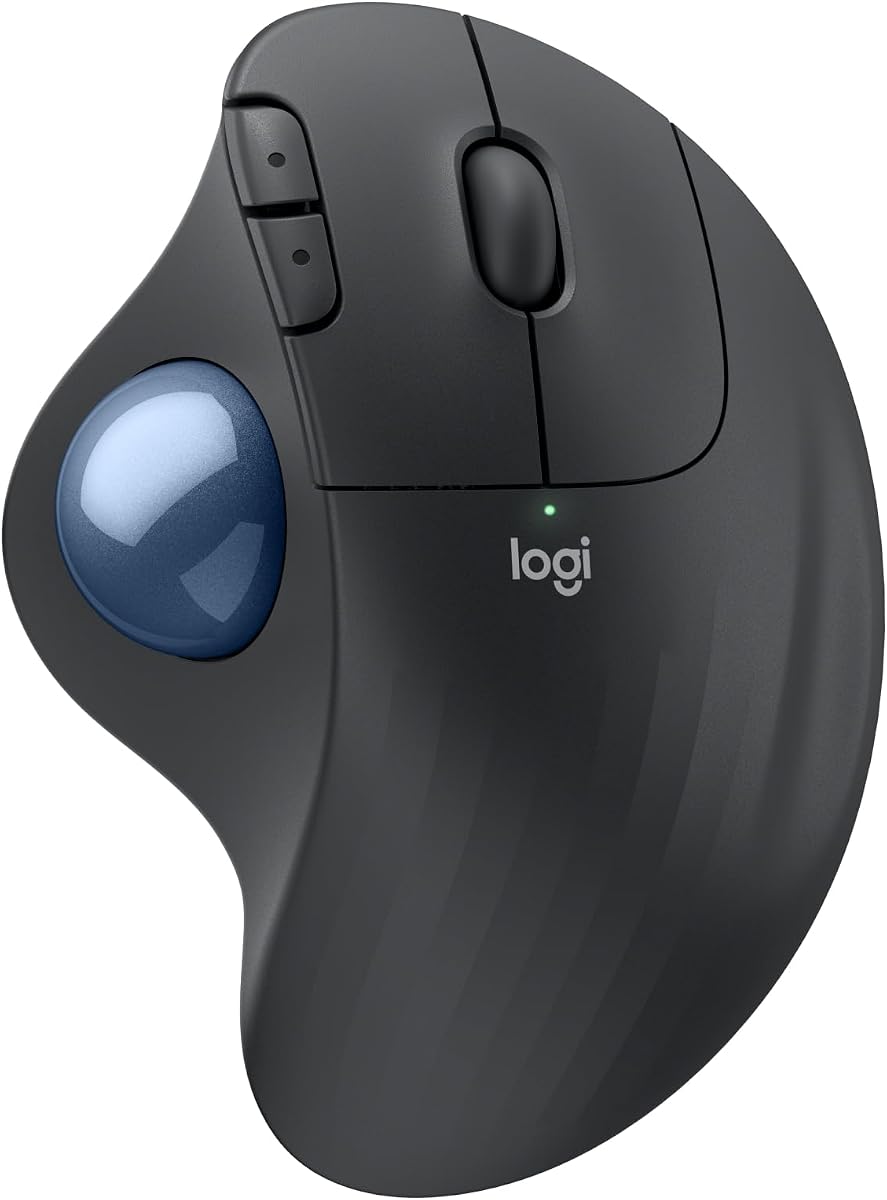
The Logitech Ergo M575S combines a sculpted trackball body with thumb-operated cursor control, making it a strong all-around recommendation for people who want less desk movement and a more relaxed working posture. Its 4.5 customer rating reflects a well-liked design, and the product stands out for its balanced mix of physical comfort, wireless flexibility, and useful customization.
We may earn a commission when you buy through this link, at no additional cost to you.
The device was developed with Logi Ergo Lab experts and is described as user-tested and ergonomist-certified. Its shaped body is intended to support the hand and realign the forearm, while Logitech claims 25% less forearm muscle strain. The trackball can be rolled without moving the entire device, which reduces the arm movement associated with repeatedly pushing a conventional mouse across a desk.
Connectivity is equally practical. Users can connect through Bluetooth or the included Logi Bolt receiver, and the supplied AA battery is advertised to deliver up to 18 months of use. Three customizable buttons, cursor-speed adjustment through Logi Options+, shortcuts, and Smart Actions add value for productivity-focused users, although the M575S does not offer the more extensive control suite of the premium MX Ergo S.
This is a particularly good choice for office workers, students, travelers, and anyone with a small or crowded desk. The M575S may feel different from a standard mouse at first, so allowing a short adjustment period is sensible. Even so, its proven shape, quiet clicks, broad surface compatibility, and long battery life make it the strongest general-purpose pick in this roundup.
Because the ball remains in one location, the M575S lets the thumb guide the pointer while the hand and forearm stay relatively still. That is its main ergonomic appeal, particularly on compact desks where horizontal mouse movement is inconvenient.
Bluetooth and the included Logi Bolt receiver make it straightforward to move between different computers. The long advertised battery life also reduces the likelihood that a mid-session recharge will interrupt a work block.
We may earn a commission when you buy through this link, at no additional cost to you.
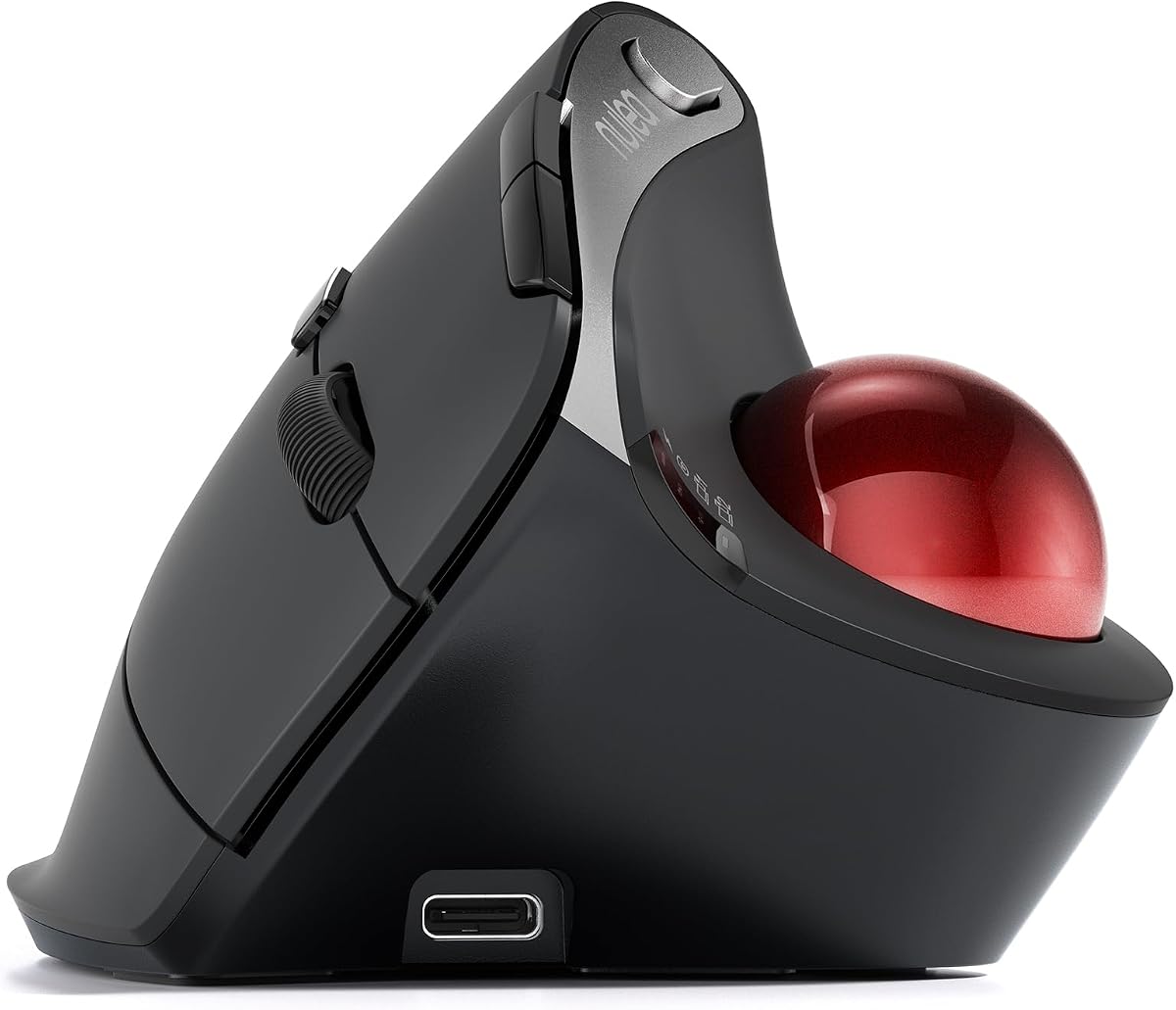
The Nulea M501 provides an approachable introduction to trackball use, with smooth thumb control, a curved ergonomic body, and four DPI settings. Its 4.4 rating indicates a favorable reception, while the rechargeable design and ability to connect three devices give it more day-to-day utility than a barebones entry-level model.
We may earn a commission when you buy through this link, at no additional cost to you.
Its primary benefit is reduced movement. Rolling the ball with the thumb can make navigation easier in confined spaces such as a small desk, sofa, bed, or lap desk. The angled shape is intended to keep the palm in a natural position, and adjustable DPI lets users move between detailed cursor placement and faster onscreen travel.
The M501 supports two Bluetooth connections and one USB receiver connection, with a physical button for switching among devices. Its built-in battery is rechargeable through the supplied cable, and the product can be paired with computers, tablets, and other compatible Bluetooth devices. A minor drawback is that its six buttons cannot be reprogrammed, which may matter to users who depend on custom shortcuts.
This model is a sensible choice for anyone curious about trackballs, building a multi-computer workspace, or seeking a straightforward ergonomic mouse without an advanced application. New users should fully charge it before the first session and give themselves time to develop a consistent thumb motion. For the money, it delivers a useful combination of comfort, connectivity, and rechargeable convenience.
The M501 covers the essentials without requiring a steep learning curve. Its uncomplicated controls and adjustable sensitivity make it suitable for browsing, office work, and light creative tasks where custom macros are not essential.
Two Bluetooth channels and a USB receiver allow quick movement among three devices. That makes the mouse useful for a desk that combines a laptop, desktop, and tablet, particularly when re-pairing would be inconvenient.
We may earn a commission when you buy through this link, at no additional cost to you.
The black Logitech Ergo M575S offers the same core concept as the M575S featured earlier: a sculpted, stationary trackball that supports the hand while thumb movement guides the pointer. Its 4.6 rating is the highest among the ten products, making it especially attractive for buyers who prioritize customer satisfaction alongside a proven ergonomic format.
We may earn a commission when you buy through this link, at no additional cost to you.
The listing emphasizes improved forearm posture, easy wireless connection, long battery life, and the space-saving benefit of thumb control. These qualities make it appealing for extended office work in environments where repeatedly sweeping a mouse across the desk is less desirable. The trackball itself also permits accurate movement without requiring a clear surface beneath it.
This listing provides less information about button customization and exact connectivity details than the expanded Logitech product entry. That makes the available description less comprehensive, although it still points to a mature, conventional trackball platform rather than an experimental design. Users should check the current listing and packaging for included receiver information and specific regional features.
The black M575S is a strong alternative for people who prefer the established Logitech trackball shape and want a high-rated wireless model. It fits the needs of office users, students, and shared workstations, especially where a compact, battery-powered pointing device is preferable. Its main appeal is straightforward: proven ergonomics, simple operation, and freedom from continuous desk movement.
The M575S family is built around a shaped body and thumb-controlled movement. That combination can feel more natural than a flat mouse for users who keep their forearm close to the desk and want to limit repetitive arm sweeps.
With a 4.6 customer rating, an easy connection process, and long battery life, this model suits users who value uncomplicated operation. It avoids the learning demands of highly specialized controls while preserving the core benefits of a trackball.
We may earn a commission when you buy through this link, at no additional cost to you.
The Logitech MX Ergo S is the most feature-oriented model in this guide, combining a pronounced 20-degree tilt, switchable tracking modes, six customizable buttons, and USB-C charging. Its 4.4 rating and extensive control options make it the leading premium choice for power users who want an ergonomic trackball that can adapt to demanding workflows.
We may earn a commission when you buy through this link, at no additional cost to you.
The speed and precision toggle is the standout feature. It allows the user to change how quickly the pointer travels without opening software, making it possible to move rapidly across a wide display and then switch to controlled movement for detailed editing. The sculpted body, soft rubber grip, and 20-degree angle are designed for medium-to-large hands, and Logitech states that the design reduces muscle strain by 27%.
Logi Options+ expands the device's usefulness with six customizable buttons, shortcuts, and Smart Actions. It connects through Bluetooth or the included Logi Bolt receiver, and the Easy-Switch control makes device changes convenient. A one-minute charge is advertised to provide up to 24 hours of use, while a complete charge can last up to 120 days. The charging cable is not included, an important detail to verify before purchase.
The MX Ergo S is best suited to creative professionals, analysts, programmers, and multi-monitor users who appreciate extensive customization. It also works well for people who want a more sculpted, elevated posture than the conventional M575S. The premium construction and controls justify the premium category for buyers who will use those features regularly, though simpler needs may be met more economically.
A dedicated mode switch changes cursor behavior immediately, which is useful when moving between large spreadsheets, dense documents, and detailed editing. The physical control provides faster adjustment than repeatedly opening a settings menu.
Six programmable buttons and Smart Actions allow common commands to be placed close at hand. For professionals, that can reduce repetitive keyboard shortcuts and make the mouse more adaptable to specialized software.
We may earn a commission when you buy through this link, at no additional cost to you.
The TECKNET Wireless Trackball offers a moderately elevated design, five sensitivity levels, and connections to three devices. Its 4.5 rating reflects a well-received balance of ergonomic positioning and practical features, while the 16-degree vertical angle gives it a distinctive profile without the extreme height of some vertical-mouse designs.
We may earn a commission when you buy through this link, at no additional cost to you.
TECKNET says the 16-degree angle promotes more natural forearm posture and may reduce muscle strain by as much as 50%. More importantly for buyers, the product's stated dimensions and intended fit point toward medium-to-large hands. Precise, smooth trackball movement is valuable in confined workspaces, and the stationary design avoids the need for a dedicated tracking surface.
Connectivity includes two Bluetooth channels and a 2.4GHz receiver, with instant switching through a button. A 500mAh rechargeable battery is advertised to provide a full day from 15 minutes of charging. DPI can be adjusted across 100, 200, 400, 800, and 1200 settings, giving users more granularity than the four-level Nulea models in the list.
The product is a good fit for users with larger hands who want some vertical relief without moving to a full vertical mouse. The manufacturer recommends spending one to two weeks becoming familiar with it, which is good advice because trackball technique varies. It is a capable office and multitasking choice, although users with smaller hands should examine the dimensions carefully.
The broader DPI range supports everything from careful pointer placement to rapid movement over large displays. It is a meaningful distinction for users who alternate between document work, browsing, and graphics-heavy applications.
Two Bluetooth connections and a 2.4GHz receiver allow the mouse to move among three systems. The short advertised charging time also makes it convenient to top up the battery during a break.
We may earn a commission when you buy through this link, at no additional cost to you.
The Nulea M506 is among the most vertically oriented trackballs in this roundup, using a 54-degree structure to keep the wrist and forearm in a more natural line. Its 4.7 rating is the highest listed among all ten products, and its thumb-operated ball, fingertip-accessible controls, and removable design make it distinctive.
We may earn a commission when you buy through this link, at no additional cost to you.
The textured palm surface supports a steady grip, while navigation keys, the scroll wheel, and function switches sit within fingertip reach. This arrangement is intended to reduce the need to reposition the whole hand during office, browsing, and creative tasks. The ball itself can be removed without tools, allowing dust and dirt to be cleared away more easily than with a permanently enclosed trackball.
The M506 supports two Bluetooth channels and one USB receiver, creating three-device switching across PCs, Macs, laptops, and tablets. Four DPI levels—400, 800, 1200, and 1600—cover precision and faster movement. Its built-in rechargeable cell is advertised to run for up to 21 days after a full charge, though actual runtime will vary with use.
This is a compelling option for users who want more of a vertical posture than standard trackballs provide. The steep angle may feel unusual during the first days, so gradual use can help the hand adapt. It is especially relevant to office and design users who appreciate fingertip control access and value the removable, maintenance-friendly ball.
The 54-degree body rotates the hand and forearm into a more upright orientation. That can feel beneficial on a standard desk, although users accustomed to a flat mouse may need several days to adjust.
The detachable ball can be removed without tools for cleaning. This makes it easier to address the dust and debris that can affect rolling feel over time.
We may earn a commission when you buy through this link, at no additional cost to you.
The Nulea Wireless Ergonomic Vertical Trackball is built around a pronounced 65-degree angle and a smooth, wave-textured palm surface. Its 4.3 rating is solid, while the vertical construction, adaptive infinite scroll, and fully silent operation give it a clear identity for users seeking a mouse-like scroll experience without conventional mouse movement.
We may earn a commission when you buy through this link, at no additional cost to you.
The scroll wheel automatically changes between precise and rapid scrolling based on how quickly it is spun, and four-way scrolling allows horizontal navigation. This is especially useful in long documents, spreadsheets, timelines, and web pages where a conventional wheel can require repeated, mechanical turning. The trackball itself is controlled with the thumb to reduce broader hand and arm movement.
Wireless connectivity covers up to three devices through Bluetooth or the included USB receiver, with one-button switching. Compatibility is listed for PCs, Macs, laptops, tablets, and phones. Every listed operating control, including the ball, buttons, and wheel, is designed for silent operation, making the mouse attractive in shared offices, libraries, and quiet nighttime workspaces.
This is a good choice for people who want a pronounced vertical posture and superior scrolling. Its 65-degree angle is the steepest in the roundup, so it may not suit every hand size or preference. Buyers who need extensive remapping should verify current software support, while those focused on silent mechanics and long-page navigation will find the feature set compelling.
The 65-degree structure offers a larger change from a conventional mouse than a low-profile trackball. Users who rotate their forearm less frequently may appreciate the altered orientation, though comfort remains individual.
The adaptive infinite wheel speeds up when spun quickly and slows for careful movement. It can reduce repetitive wheel action and is particularly helpful in lengthy documents and large spreadsheets.
We may earn a commission when you buy through this link, at no additional cost to you.
The Nulea Tilt Stand Trackball offers a middle path between a conventional trackball and a strongly vertical mouse. Its 21.7-degree stand raises the hand and supports a more natural wrist position, while the 4.4 rating suggests that the design is generally well received.
We may earn a commission when you buy through this link, at no additional cost to you.
Thumb control keeps broader hand and arm movement to a minimum, and the elevated body helps the palm rest more naturally. The mouse is designed for office work, drawing, editing, and multitasking across screens. Four sensitivity levels of 400, 800, 1200, and 1600 DPI let users move between precise editing and faster pointer travel without complicated setup.
Silent operation extends across the trackball, buttons, and scroll wheel, making this model attractive for shared spaces or late-night use. It connects through Bluetooth or a USB receiver and supports up to three devices with instant switching. Its compatibility list includes PCs, Macs, laptops, tablets, and phones. The six-button layout includes back and forward controls, although the buttons are not programmable.
This model suits users who find steep vertical mice too dramatic but want more elevation than a flat trackball. It is less compelling for professionals who need custom macros, yet its multi-device support, silent operation, and moderate tilt make it versatile for everyday office tasks. Trying the device at a desk before committing is advisable because the raised position changes the wrist angle.
A 21.7-degree stand adds elevation without pushing the hand into the near-vertical posture associated with specialty vertical mice. This middle-ground approach can be easier for some users to adopt.
The full set of silent controls and three-device switching supports focused work in shared environments. It is particularly useful for people moving regularly between a laptop and two additional computers or tablets.
We may earn a commission when you buy through this link, at no additional cost to you.
The Logitech ERGO M575 for Business is a workplace-oriented trackball with a sculpted body, stationary footprint, and remote management features. Its 4.4 rating and emphasis on deployment make it a strong choice for organizations seeking to provide ergonomic pointing devices at scale, while remaining usable as a personal home-office mouse.
We may earn a commission when you buy through this link, at no additional cost to you.
Logi Sync support allows administrators to deploy and monitor compatible devices remotely. For the person using the mouse, the important ergonomic qualities are its shaped body, 25% claimed reduction in muscle activity, and promotion of better forearm posture. The product was developed with Logi Ergo Lab experts and is described as user-tested and certified by US Ergonomics.
Smooth thumb control operates on any surface, and users can personalize buttons with shortcuts through Logi Options+. That makes the trackball more versatile for productivity applications than a mouse with fixed navigation controls. A single AA battery is advertised to provide up to 18 months of use, reducing the administrative burden of frequent battery replacement across a large deployment.
This model is best for IT teams, office managers, and employees working in tight environments. The management and deployment features may matter to organizations of dozens or hundreds of users, while individual buyers can still benefit from the ergonomic shell, shortcuts, and long battery life. It is less compelling when advanced mixed-device switching is the priority.
A standardized ergonomic mouse can help organizations provide a consistent alternative to standard pointing devices. Remote deployment and monitoring through Logi Sync improve control over larger installations.
Programmable shortcuts add value during routine office work, while the long advertised battery life helps reduce maintenance. Together, these features make the mouse practical for employees who use it every day.
We may earn a commission when you buy through this link, at no additional cost to you.
This Logitech MX Ergo S listing emphasizes professional features, including an encrypted wireless dongle, six programmable buttons, and a rechargeable design. The 4.5 rating indicates strong customer reception, and its 20-degree tilt, soft rubber grip, and switchable speed mode place it in the premium ergonomic category.
We may earn a commission when you buy through this link, at no additional cost to you.
The mouse is contoured for medium-to-large hands and designed to improve forearm posture. Its tracking control lets users move between faster cursor travel and high-precision mode, which can be valuable across multiple displays or during detailed editing. Logitech also states that the design reduces muscle strain by 27% and offers 80% quieter clicks.
Six buttons can be customized through Logi Options+, with support for shortcuts and Smart Actions. The encrypted dongle differentiates this configuration for security-conscious professional environments, while Bluetooth connectivity remains available for broader compatibility. USB-C charging is convenient, and the manufacturer advertises up to 24 hours of use from a one-minute charge or up to 120 days from a full charge. A compatible cable is not included.
This model is aimed at professionals who need secure wireless connectivity and extensive workflow configuration. It works especially well for PC and Mac users with larger hands, multiple screens, or demanding editing workflows. The premium feature set is worthwhile for those who will use programmability, but buyers seeking basic thumb control and long battery life may find the M575S more efficient.
The encrypted dongle is a meaningful distinction in managed offices and other environments where wireless peripherals may require additional protection. It also provides a straightforward receiver-based connection for compatible systems.
Six programmable buttons, shortcut support, and Smart Actions let users place frequent commands within reach. This makes the mouse particularly useful for specialized applications and repeated multitasking sequences.
We may earn a commission when you buy through this link, at no additional cost to you.
The right ergonomic trackball depends on hand size, posture preferences, control requirements, power needs, and the number of devices you use. Comparing these factors before buying is more useful than focusing on a single advertised comfort claim.
Trackballs range from low, sculpted shells to sharply vertical designs. A conventional ergonomic shape, such as that used by the Logitech Ergo M575S, supports the hand without dramatically changing wrist orientation. Moderate stands around 16 to 22 degrees can provide a compromise for users who want some elevation. Steeper 54- and 65-degree models place the forearm closer to an upright position but may feel unfamiliar at first. Larger hands are generally better served by broad, high-profile models, while smaller hands may prefer a compact or less elevated design.
Choose a shape that fits your hand rather than relying only on a stated strain-reduction figure. Check the dimensions, consider your typical grip, and be willing to adjust gradually.
Most of these products use a thumb-operated trackball, allowing the device to remain still while the pointer moves. The transition from pushing a mouse to rolling a ball can temporarily reduce accuracy, particularly during fast movements. Some users naturally develop looser motions, while others over-rotate the thumb. Practice with slow movements, a moderate DPI setting, and short sessions can help build control.
Do not judge a trackball after only a few minutes. Allow several days, or up to one to two weeks, to establish a comfortable and consistent technique.
DPI determines how far the pointer travels for a given ball movement. Low settings support precise placement in design software, text, and spreadsheets, while high settings cover long distances more quickly. Four-level devices such as the Nulea M501 and M506 provide a useful balance, whereas the TECKNET model's five levels offer slightly more granularity. Dedicated precision modes, as found on the Logitech MX Ergo S, are another way to change cursor behavior quickly.
Select a mouse that offers at least a low and a high sensitivity option. Easy switching between those extremes is especially useful when the same device handles editing, browsing, and large displays.
A trackball that supports several devices can replace multiple desktop peripherals. The Nulea models and TECKNET Wireless Trackball support combinations of Bluetooth and USB receiver connections, generally allowing three-device switching. Logitech's premium M575S and MX Ergo S models use Bluetooth and the Logi Bolt receiver, while the business M575S emphasizes organizational deployment through Logi Sync. Buyers should verify operating-system compatibility and whether a receiver is included.
Prioritize one-button device switching if you regularly alternate between a laptop and desktop. Check receiver storage and pairing procedures before committing to a model.
Fixed buttons are sufficient for basic navigation, but programmability can materially improve workflow efficiency. The Logitech M575S supports three customizable buttons, while the MX Ergo S provides six and supports shortcuts and Smart Actions through Logi Options+. By contrast, the Nulea M501 and Tilt Stand Trackball explicitly list non-programmable buttons. Users who rely on application switching, media controls, macros, or repeated editing commands should favor software-supported models.
Match programmability to your actual workflow. Extra buttons have limited value if the bundled software does not support your operating system or preferred applications.
The Logitech ERGO models use an AA battery and are advertised to run for up to 18 months on one charge or battery, depending on the model. Rechargeable options include the Nulea M501, the Nulea M506, the TECKNET Wireless Trackball, and the Logitech MX Ergo S. The Nulea M506 is advertised to run for up to 21 days, while the TECKNET model is said to provide a full day after 15 minutes of charging. The MX Ergo S supports rapid USB-C charging but does not include a cable.
Choose based on desk access to batteries or USB ports. Removable-battery models simplify long-term ownership, while rechargeable models reduce disposable battery use.
Unlike optical mice, trackballs do not require a clear tracking surface, which makes them useful on desks, couches, beds, lap desks, and crowded worktops. Their stationary footprint can save valuable horizontal space, although raised or vertical models still need adequate room for the hand. The removable ball on the Nulea M506 is also useful for cleaning, and sealed trackballs may require the ball to be ejected according to the manufacturer's instructions.
Consider both the desk footprint and the space your hand needs. A device that saves mouse-travel room may still require a comfortable resting position for the wrist and forearm.
Scrolling behavior can matter as much as pointer movement. The Nulea vertical model's infinite wheel shifts between slow and fast movement according to spin speed and supports four-way scrolling, while the other models provide conventional wheel control. Back and forward buttons are common on the Nulea M501 and Tilt Stand Trackball, and premium Logitech models offer more programmable options. Buyers should consider how they browse documents and whether horizontal scrolling is important.
Check the wheel design and available navigation buttons before buying. Silent controls are valuable in shared spaces, while programmable buttons are more useful for repeated commands.
Begin by placing the mouse where your forearm can remain supported and relaxed. Keep the device stationary and roll the ball with small, controlled thumb movements rather than pushing the entire mouse across the desk. Start with a moderate DPI setting so you can learn the required ball rotation, then adjust sensitivity according to the precision or speed you need.
Pair the device through Bluetooth or its supplied USB receiver, following the connection button or instructions. If the mouse supports several systems, use the device-switch control rather than repeatedly re-pairing it. For models with programmable buttons, open the relevant Logi Options+ or Nulea configuration experience, verify compatibility, and assign shortcuts only after becoming comfortable with basic movement.
Keep the trackball and exterior clean. Follow the manufacturer's instructions for removing or ejecting the ball, particularly because removable and ejectable mechanisms can differ. Wipe the ball gently, clear dust from the openings, and avoid pushing debris into the housing. If a removable ball becomes sticky or uneven, cleaning it and checking the relevant manufacturer guidance can restore smoother rolling.
They can be suitable because they keep the device stationary and may reduce repeated arm movement. The resulting comfort depends on the mouse's shape, your hand size, desk setup, and technique. A gradual adjustment period is important, and users experiencing persistent pain should seek guidance from an appropriate medical or ergonomic professional.
Yes. Because a trackball uses a rolling sphere rather than a surface sensor, it can operate on soft or irregular surfaces where an optical mouse may struggle. Stability is still important, so place the device on a firm part of the bedding or use a small lap desk if the mouse would otherwise slide.
A horizontal trackball offers a gentler transition from a conventional mouse and often works well in standard office environments. A vertical model creates a more upright forearm angle but may feel unfamiliar or occupy more space. Consider your current posture, desk depth, hand size, and willingness to adapt before choosing.
Most users become noticeably more accurate within several days, although full comfort can take one to two weeks. Start with a low or moderate sensitivity level, make small thumb movements, and avoid compensating by moving the entire mouse. Short, frequent practice sessions are generally more useful than forcing a long first day of unusual movement.
Programming depends on the model. Logitech M575S and MX Ergo S products support customization through Logi software, while some Nulea models explicitly list fixed, non-programmable buttons. Verify operating-system and application compatibility, because a model may support standard navigation buttons without allowing users to assign complex commands.
DPI controls cursor speed relative to physical ball rotation. Lower settings are useful for precise pointer placement, while higher settings cover large screens and long documents more quickly. Most users benefit from a model with at least two clearly different speeds or a dedicated switch between precision and fast tracking.
Yes. Their compact stationary design saves desk space, and many models support Bluetooth connections to laptops or tablets. Battery-powered models offer particularly simple travel use, while rechargeable models require access to the specified charging cable or port. A protective case can help if the mouse will be carried in a crowded bag.
Switch it off and disconnect it if possible, then follow the manufacturer's instructions for removing or ejecting the ball. Gently wipe the ball and accessible internal surfaces, clear away visible dust, and reinstall the ball correctly. Avoid immersing the mouse or using excessive liquid near its buttons, ports, and electronic components.
The Logitech Ergo M575S is the strongest general recommendation because it combines a proven sculpted form, quiet operation, broad surface compatibility, wireless connectivity, app-based customization, and long battery life. The Nulea M501 is the best budget choice for buyers who want thumb control, rechargeable power, and three-device switching without paying for advanced programmability. For a premium workflow, the Logitech MX Ergo S offers the most complete feature set.
The right alternative depends on physical preferences. The Nulea M506 and 65-degree vertical model suit users who want a pronounced upright posture, while the Nulea Tilt Stand model offers a moderate compromise. The TECKNET Wireless Trackball adds five DPI levels and a rechargeable design for larger hands, while the Logitech ERGO M575 Business model is particularly relevant to managed workplace deployments.
Before buying, verify the current listing, included receiver, charging requirements, software compatibility, and product specifications. Ergonomic benefits are individual, and prices and availability change over time. Use the trackball consistently, adjust its speed to your task, and give your hand time to adapt before deciding whether it has improved your workday.