
Calibrite Display 123
4.0Editor score
Guided 1-2-3 calibration workflow
Supports up to two displays
USB-C connection included
Before-and-after comparison
Monitor calibration tools compared for color accuracy, HDR support, software, multi-display workflows, and usability to help you choose the right device.
A monitor calibration tool helps make your display reproduce colors more consistently, which matters whenever photographs, videos, graphics, or client work depend on an accurate image. The right device should measure the screen, create an appropriate profile, and give you practical control without making the process unnecessarily difficult.
The products in this guide were compared using the information supplied for each model, including sensor capability, supported display technologies, software features, connection method, and multi-monitor functionality. The list includes options for photographers, video editors, designers, and users who need more advanced control over high-luminance displays.
Each review highlights the most useful strengths and trade-offs of its featured tool, while the comparison table helps narrow the field quickly. Features and product availability can change, so check the current listing and confirm compatibility before purchasing.
4.0Editor score

4.3Editor score

4.0Editor score
This side-by-side comparison organizes the ten options by their most important practical characteristics, including sensor range, display support, workflow complexity, and multi-monitor capabilities.



The Calibrite Display Pro HL combines a capable high-luminance colorimeter with the full Calibrite PROFILER application, giving it broad appeal for photo, video, design, and HDR-related work. Its supplied rating is 4.3, and its standout qualities are support for LCD, Mini LED, OLED, and Apple XDR displays along with measurements up to 3000 nits.
We may earn a commission when you buy through this link, at no additional cost to you.
The advanced sensor is designed to provide dependable readings on brighter panels where a standard colorimeter may struggle. PROFILER provides Basic and Advanced modes, adjustable white point, luminance, contrast ratio, and gamma, and custom patch sets. Quick Check, profile validation, uniformity checks, and flare correction make the package useful beyond the initial profile creation.
The trade-offs are its learning curve and its higher position in the market compared with simple guided devices. Users who only want a quick photo workflow may find Display 123 easier, while people working with extremely bright displays may need the greater measurement range of Display Plus HL. For most serious creative professionals, however, Display Pro HL offers a balanced and versatile feature set.
Choose this model if you edit on a modern high-brightness display, want room to refine profiles, or regularly work with more than one monitor. It is a particularly strong recommendation for users who value validation and uniformity tools without needing the extreme 10,000-nit capability of the premium Calibrite model.
The high-luminance sensor is the defining feature for modern HDR-capable panels. Measuring up to 3000 nits makes this device better suited to bright Mini LED, OLED, and Apple XDR workflows than a conventional entry-level calibrator.
PROFILER combines adjustable calibration targets with profile validation, uniformity checking, and flare correction. That combination helps users identify problems that a basic before-and-after view may not explain.
We may earn a commission when you buy through this link, at no additional cost to you.
The Calibrite Display 123 is designed to make accurate monitor calibration approachable, with a guided 1-2-3 workflow and a compact colorimeter that is easy to place on a display. It carries a supplied rating of 4.0 and focuses on the core needs of photographers, creators, and everyday color-sensitive users.
We may earn a commission when you buy through this link, at no additional cost to you.
Its selection of Native and Photo brightness targets provides useful guidance without exposing every technical setting at once. The built-in comparison view shows the effect of calibration using images, while support for up to two displays adds value for users with a laptop and external monitor or a dual-screen workstation.
The main limitation is its narrower focus compared with the PROFILER-equipped models. It does not describe a high-luminance measurement range, extensive patch-set controls, or detailed uniformity and flare tools. Those omissions are understandable for a budget-oriented product but may matter to video professionals or users with very bright HDR screens.
This is a strong choice for a photographer who wants a dependable calibration routine without a steep learning curve. It is also suitable for students, hobbyists, and small creative teams that need to match two displays. For advanced panel analysis, move up to Display Pro HL; for the simplest supported workflow, Display 123 delivers.
The Easy 1 2 3 process keeps the main decisions visible and sequential. This is useful for users who want a consistent routine but do not need to build custom patch sets or adjust numerous gamma and contrast parameters.
Supporting up to two displays addresses a common editing setup without adding the complexity of professional multi-screen management. Matching both screens can reduce obvious color differences when moving between a laptop panel and a larger reference display.
We may earn a commission when you buy through this link, at no additional cost to you.
The Calibrite Display Plus HL is aimed at demanding users who need to measure exceptionally bright displays and maintain a detailed color workflow. Its supplied rating is 4.0, and its defining feature is an advanced high-luminance sensor rated to measure up to 10,000 nits.
We may earn a commission when you buy through this link, at no additional cost to you.
The device supports LCD, Mini LED, OLED, Apple XDR, super-bright displays, and compatible projectors. PROFILER includes Basic and Advanced modes, white point, luminance, contrast ratio, gamma, custom patch sets, and shared presets. Video-oriented features include Rec.709 support and BT.1886 tone-curve options for Rec.2020 workflows.
Professional validation features add practical value for users who need more than a simple visual confirmation. Quick Check, Profile Validation, Uniformity Check, and Profiler Manager help evaluate the result and manage profiles across multiple display editing setups. The trade-off is that this capability is excessive for basic web or office work and may intimidate a first-time user.
Buy the Display Plus HL when accurate HDR measurement, high-end display support, and video production control are central to your work. It is particularly appropriate for colorists, motion editors, and studios using super-bright reference panels. If your displays are conventional but you still want professional controls, Display Pro HL is the more balanced alternative.
A 10,000-nit measurement ceiling gives the Plus HL a distinct advantage when the target display can reach brightness levels far beyond ordinary office monitors. That range is particularly relevant to HDR grading, high-end Mini LED panels, and Apple XDR workflows.
Rec.709 support and BT.1886 tone-curve options for Rec.2020 workflows add value for motion professionals. These choices make it easier to select a target aligned with the intended video pipeline instead of treating every display as a general-purpose screen.
We may earn a commission when you buy through this link, at no additional cost to you.
The Datacolor Spyder X Pro is a focused color-management tool for photographic workflows and users who want a quick, understandable calibration process. Its supplied rating of 4.4 is the highest among the products listed, and its defining features include a lens-based color engine, room-light monitoring, and automatic profile changing.
We may earn a commission when you buy through this link, at no additional cost to you.
The software provides a single-click calibration wizard and 12 predefined targets, which gives beginners sensible starting points without requiring extensive color-science knowledge. SpyderProof presents before-and-after results using the user's own images, while the application can calibrate multiple laptops and desktop monitors.
Its limitations are most visible for users who need detailed video standards, advanced tone-curve selection, or a documented high-luminance measurement ceiling. The supplied data emphasizes photo accuracy, fast setup, and room-light monitoring rather than the extensive control and validation suite found in Calibrite PROFILER.
The Spyder X Pro is an attractive recommendation for photographers and first-time users who value an intuitive process and strong rating. It is also useful for multi-device creators who want automatic profile switching. For advanced HDR or specialist studio workflows, the Display Pro HL or Display Plus HL offers more explicit control.
A single-click workflow and 12 predefined targets make the X Pro approachable for photographers who calibrate periodically rather than adjusting complex parameters. The result is a short routine that can become part of a normal editing session.
Room-light monitoring and automatic profile changing help keep the display response aligned with the viewing environment. These features are especially practical for users who move between brighter and darker rooms.
We may earn a commission when you buy through this link, at no additional cost to you.
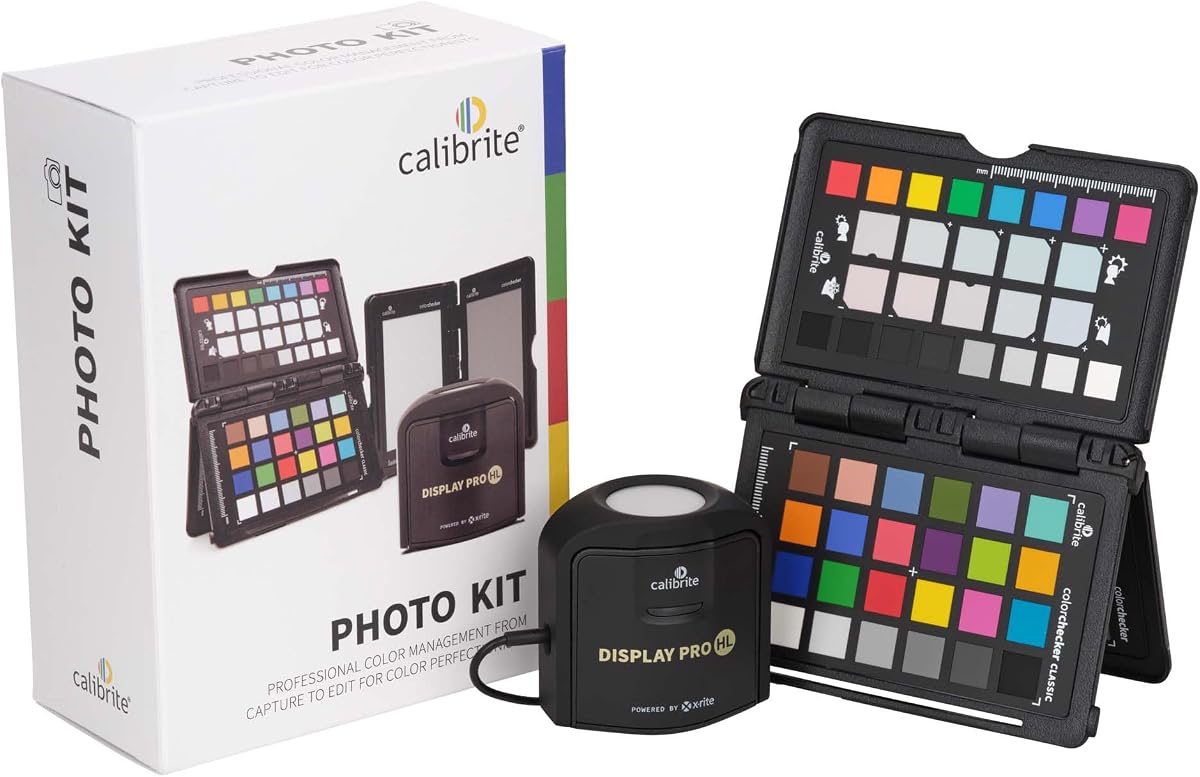
The Calibrite Photo Kit is the only option in this list that explicitly combines a Display Pro HL colorimeter with a ColorChecker Passport Photo 2. Its supplied rating is 4.5, and its primary strength is an end-to-end capture-to-edit workflow for RAW still photography.
We may earn a commission when you buy through this link, at no additional cost to you.
The Display Pro HL handles modern monitor types, including Mini LED, OLED, and Apple XDR displays, while the Passport Photo 2 provides a reference for creating custom camera profiles. This combination helps connect capture conditions, camera response, and monitor viewing so that color shifts are less likely to be introduced between stages.
The compromise is scope. Buyers interested only in improving a display may not need a camera-profiling accessory, and the expanded workflow may take more time to learn. The kit is therefore most compelling for photographers who want one coordinated system rather than separate tools for scene reference and screen calibration.
Choose the Photo Kit if you shoot RAW regularly and want a repeatable process from capture through editing. Its calibration hardware provides the same modern-display foundation as Display Pro HL, while the ColorChecker component adds a practical photographic reference. If the budget is better spent on screen tooling alone, the standard Display Pro HL is the more focused purchase.
The camera and display components solve related but distinct consistency problems. Using both can establish a more coherent reference chain than relying on a display profile alone, particularly for RAW workflows affected by changing lighting and white balance.
The included Display Pro HL retains support for Mini LED, OLED, and Apple XDR panels. That makes the kit more future-oriented for photographers who have already adopted a high-end creative display.
We may earn a commission when you buy through this link, at no additional cost to you.
The Datacolor Spyder X Elite is designed for expert photographers and motion image makers who want more control than a basic guided calibrator offers. Its supplied rating is 4.4, and the combination of a step-by-step assistant, expert console, and unlimited calibration settings gives it broad professional appeal.
We may earn a commission when you buy through this link, at no additional cost to you.
Its lens-based color engine is designed to improve color accuracy across multiple monitors, while StudioMatch Assistant focuses on matching displays. Room-light monitoring, automatic profile changing, improved shadow detail, and white-balance control address common professional display variables.
The main drawback is its position within the broader Spyder line. It includes capabilities absent from the more recent X2 Elite, such as broader professional standard selection in the supplied description, but the X2 adds advanced display mapping, soft proofing, and updated video and cinema targets. Buyers should compare those workflow differences rather than assuming a longer model name is automatically preferable.
This model makes sense for a professional studio that values matching screens, projector support, and detailed settings. It is also a strong choice for users who appreciate Datacolor's established calibration approach. New buyers focused on the latest software features should give the Spyder X2 Elite careful consideration.
StudioMatch Assistant targets visual consistency across displays, which is important when a team edits on different hardware. The focus is not merely creating separate profiles but making those screens more closely aligned.
The expert console and unlimited calibration choices allow users to select settings suited to photography, video, television, or projection. A step-by-step assistant still makes the device approachable without preventing deeper manual work.
We may earn a commission when you buy through this link, at no additional cost to you.
The Datacolor Spyder4Pro is a conventional colorimeter focused on automated color and brightness calibration across multiple displays. It has a supplied rating of 4.2 and uses a full-spectrum sensor with fourth-generation double-shielded color filters intended to improve matching to CIE standards and long-term stability.
We may earn a commission when you buy through this link, at no additional cost to you.
A single sensor can calibrate multiple displays, which reduces the need to move separate hardware between desks or editing stations. The ReCAL feature is also practical because display behavior can change over time, allowing the user to return to a familiar state without repeating the entire setup process from scratch.
The trade-off is that this is an older product generation, and the supplied specifications do not highlight the HDR measurement ranges or video-standard tools found in newer premium devices. It is a sensible choice for conventional LCD, LED, OLED, laptop, and projector workflows, but not the strongest selection for extremely bright reference panels.
Choose the Spyder4Pro if you prioritize an automated routine, stable readings, and the ability to handle several screens. It is useful for photographers and general creative professionals who do not need advanced soft-proofing or extreme-luminance measurement. Consider a newer model if comprehensive video tools are central to the work.
Multi-display support is especially useful in offices where one person edits across a desktop and a laptop. A single colorimeter can be used on each display, making the hardware less cumbersome than managing separate devices.
The ReCAL assistant is intended to compensate for changes that occur over time. It makes scheduled maintenance less disruptive because the user can quickly re-establish a known calibration state.
We may earn a commission when you buy through this link, at no additional cost to you.
The ASUS ProArt CaliContrO MCA02 is unusual because it combines an integrated colorimeter with display OSD control and the ASUS Dial. Its supplied rating of 1.5 is notably lower than the ratings of the other products, so the strongest caution is warranted despite its ambitious specification list.
We may earn a commission when you buy through this link, at no additional cost to you.
On the technical side, it measures up to 10,000 nits and is designed for LED, OLED, Mini-LED, and other modern display types. Hardware and software calibration are supported, while a five-way navigator, shortcut key, and customizable ASUS Dial shortcuts can simplify navigation through creator applications and display settings.
Its integrated design is convenient because the same device can serve as a sensor and as a control interface. However, users should pay close attention to the product's ecosystem, included software, and compatibility with their exact display. The low supplied rating may reflect unresolved customer experiences, incomplete information, or another issue that cannot be determined from the listing data alone.
This product is worth considering for an ASUS-based professional workstation that values OSD control and display integration, especially for very bright panels. It is not our most confident general recommendation because of its rating. Prospective buyers should examine recent customer feedback and verify the current software experience before committing.
Combining a colorimeter, OSD controller, and programmable dial can reduce desk clutter. It is especially relevant to creative workspaces where display settings and creator-software shortcuts are adjusted frequently.
The stated 10,000-nit ceiling aligns with premium HDR-oriented devices. That capability is meaningful only when paired with a display that operates in the same brightness class and with compatible calibration software.
We may earn a commission when you buy through this link, at no additional cost to you.
The Datacolor Spyder X2 Elite targets users who work across photography, video, and digital design rather than specializing in only one output medium. Its supplied rating is 4.0, and the defining features are video and cinema targets, advanced display mapping and analysis, soft proofing, unlimited calibration settings, and StudioMatch for multiple monitors.
We may earn a commission when you buy through this link, at no additional cost to you.
The remastered software introduces a cleaner and more concise interface, which can make a broad set of features easier to navigate. Recommended presets support less-experienced users, while customized parameters allow advanced users to define their own targets. Native USB-C connectivity and a USB-A adapter simplify connection to different computers.
As with other advanced products, the abundance of options can be unnecessary for someone who only needs a basic photo profile. It also lacks a stated high-luminance measurement ceiling, so extreme HDR displays may lead buyers toward the Calibrite HL models or the ASUS device instead.
The X2 Elite is a strong recommendation for hybrid creators who want one device to cover still images, motion work, and design output. Its soft-proofing and display-mapping features make it more relevant to a professional workflow than a basic colorimeter. It is particularly attractive when connecting to modern laptops is a priority.
Rec.709 and Rec.2020 targets join photography-oriented calibration tools in the same application. This makes the X2 Elite practical for creators who alternate between still and motion projects rather than maintaining separate workflows.
Soft proofing helps simulate a target output on the calibrated display, while advanced display mapping provides deeper analysis of the screen's behavior. These are useful additions for users preparing deliverables for specific devices or media.
We may earn a commission when you buy through this link, at no additional cost to you.
The Datacolor Spyder4Elite is an established colorimeter with automated color and brightness calibration, a full-spectrum sensor, and support for LED, OLED, LCD, and CRT displays. Its supplied rating is 3.5 is the second-lowest in this guide, placing it behind the newer Spyder models in terms of the available customer feedback.
We may earn a commission when you buy through this link, at no additional cost to you.
The device can calibrate laptops and front projectors in addition to desktop panels. Fourth-generation double-shielded filters are designed to bring readings closer to CIE color standards, improve long-term stability, and increase consistency between Spyder units. ReCAL provides a convenient way to restore calibration after a display changes over time.
Its primary weakness is age. Newer devices in this list offer modern video targets, high-luminance sensors, refined interfaces, USB-C connectivity, or more detailed validation workflows. The Spyder4Elite's core functions remain relevant, but buyers should compare whether an established platform offers enough value over a newer alternative.
Buy the Spyder4Elite if you specifically need support for CRT, front projectors, or an established Datacolor workflow, or if you find a particularly suitable current configuration. For modern HDR editing and more specialized video standards, the Spyder X2 Elite or a Calibrite PROFILER model is the more forward-looking choice.
Support for LED, OLED, LCD, CRT, laptops, and front projectors makes this model versatile across mixed equipment. That breadth is especially relevant to studios that still operate older or specialized screens.
ReCAL helps users respond to gradual display drift without repeating every initial decision. Combined with the focus on sensor stability, it supports a repeatable maintenance schedule.
We may earn a commission when you buy through this link, at no additional cost to you.
Choose a monitor calibration tool by matching its sensor range, software, supported display technologies, and workflow controls to the displays and media you actually use. The most expensive device is not automatically the best fit, while the simplest one may not provide enough control for demanding work.
The calibrator should support the technologies in your workstation, including LCD, Mini LED, OLED, Apple XDR, projectors, or other formats. High-luminance sensing is particularly important for HDR-capable and super-bright panels because a device with a limited range may not measure highlights reliably. Display 123 and Spyder4Pro suit more conventional setups, while Display Pro HL, Display Plus HL, and the ASUS CaliContrO offer explicit high-luminance specifications.
Software determines how much control you have over white point, luminance, gamma, contrast, patch sets, and color targets. A guided workflow is convenient for occasional users, while advanced modes benefit colorists, photographers, and studios that need to tune profiles for different standards. Calibrite PROFILER and Spyder X2 Elite emphasize detailed options, whereas Display 123 emphasizes a simple sequence.
Photography tools should help maintain accurate skin tones, shadow detail, white balance, and general tonal separation. Video-oriented models can add Rec.709, Rec.2020, cinema targets, and tone-curve choices. The Photo Kit expands the scope with a ColorChecker Passport Photo 2 and custom RAW camera profiles, while Display Plus HL and Spyder X2 Elite provide specific video standards.
Professionals often use more than one display, and a mismatch between screens can disrupt editing decisions. Every product here offers some multi-display capability, but the scale differs. Display 123 supports up to two displays, Spyder X Pro and the Spyder X Elite emphasize multiple laptops and desktops, and PROFILER-based models support profile sharing for workgroups.
A before-and-after view is useful for confirming a visible change, but dedicated validation can reveal more about profile quality and panel consistency. Display Pro HL and Display Plus HL include Quick Check, profile validation, and uniformity checks, with flare correction on the Pro HL. These functions are valuable for users who want evidence that a display is performing consistently.
USB-C is convenient for modern laptops and desktop systems, while a USB-A adapter improves compatibility with older ports. A counterweight helps keep the colorimeter from slipping on curved or angled displays, and an adjustable arm makes placement more repeatable. Display Pro HL, Display Plus HL, and Display 123 all use USB-C, and the ASUS device uses a reversible USB-C connection.
The device should rest securely without scratching the screen and should be easy to position on displays of different sizes. A compact body is convenient for storage and travel, while a travel pouch adds protection. Consider the supplied cable, counterweight, software availability, storage case, and whether the product includes additional photographic or color-reference tools.
Budget calibration should be judged by repeatability and ease of use, not just the lowest purchase figure. A guided two-display tool may serve a photographer better than an advanced model that will not be used. Conversely, high-luminance sensors, video standards, and validation tools can justify a premium when they match a professional requirement. Review current pricing and included accessories before deciding.
Begin by letting the monitor warm up for a consistent period, then clean the screen and choose a target brightness that suits your editing environment. Connect the colorimeter with the supplied USB-C or USB-A connection, place it securely using the provided arm or counterweight, and complete the software's display setup before starting the measurement sequence.
Follow the software prompts through the chosen patch series without moving the colorimeter. Keep ambient lighting stable, allow the display to settle between measurements, and avoid interrupting the process. Afterward, use the before-and-after view, profile validation, or uniformity check if available, and save or export the resulting profile in a clearly named location for future reference.
Treat the device as precision equipment. Clean the sensor window with a soft, dry cloth, keep liquids away from the body, and do not press hard on the screen while positioning the arm. Recalibrate when the display settings change, after a major hardware update, or when validation reveals drift. Store the colorimeter in its pouch or a protected case and verify software compatibility before updating the host computer or display.
A calibration tool is useful whenever consistent color matters, including photography, video editing, graphic design, and product visualization. Displays can vary in factory accuracy and drift as they age or their settings change. Calibration cannot make a poor display equivalent to a professional reference panel, but it can correct many color and brightness inconsistencies and establish a repeatable starting point.
Yes. All ten products listed support calibration across more than one display to some degree, although the number of displays and profile-management features differ. Display 123 specifically supports up to two displays, while the Spyder X Pro, Spyder X Elite, and PROFILER-based products provide broader multi-monitor workflows. Each connected screen still needs its own profile even when one sensor is reused.
Your choice should reflect the brightness your display can actually reach and the output you are targeting. Display Pro HL measures up to 3000 nits, while Display Plus HL and the ASUS CaliContrO list a 10,000-nit capability. A high range matters for high-end HDR panels, but it is unnecessary for standard office displays and does not guarantee that every panel will be correctly characterized.
For many photo editors, yes. Display 123 provides a guided workflow, brightness targets, a comparison view, and support for two displays, which can make regular maintenance easier than manual adjustment. Advanced tools are more appropriate when you need custom patch sets, detailed validation, video standards, shared presets, or extensive control over tone and color parameters.
The appropriate schedule depends on how often the display is used and how stable the environment remains. Monthly recalibration is a reasonable starting point for many professionals, while reference displays used intensively may be checked more frequently. Recalibrate promptly after changing brightness, color temperature, firmware, operating system, graphics settings, or the room's ambient lighting.
A properly executed profile should improve consistency rather than simply impose a preferred look. The software can set an appropriate white point, luminance, gamma, and contrast for the selected target, and the creative choices remain under your control. It is sensible to preserve or record the display's original settings before beginning so that you can compare results and restore them if needed.
Choose the Calibrite Photo Kit if you shoot RAW and want a coordinated camera-reference and monitor-calibration process, including the ColorChecker Passport Photo 2. Choose a standalone calibrator if your priority is display color alone. The standalone options are generally more focused, while the kit is intended to reduce inconsistency across capture and editing.
A profile is tied to the display's characteristics and operating environment, so each display should have its own profile. Some products support exporting, importing, or sharing presets and profiles, but transferring a profile does not replace calibrating a different display. PROFILER-based tools are particularly useful for workgroups that want shared presets across several matched screens.
The Calibrite Display 123 is the most approachable recommendation for photo editing and dual-display setups, while the Display Pro HL offers the strongest balance of modern display support, detailed controls, and validation. For exceptionally bright HDR panels and advanced video work, the Display Plus HL provides the most extensive Calibrite feature set in this roundup.
Prioritize the display technology and brightness range you need first, then choose the level of software control that matches your experience. Photographers may favor guided tools or a capture-to-edit kit, while video professionals should look for high-luminance measurements, recognized standards, soft proofing, and multi-display consistency. Validate the result rather than judging only by appearance.
Product features, ratings, and prices can change, so review the current Amazon listing before buying. Confirm compatibility with your monitor and computer, check what software and accessories are included, and compare the current price of the options suited to your workflow before making a final decision.
